

Ardot Limited-Time Free Edition Seats & Permissions Guide
In a team, the administrator holds the highest permission inside that team. Team-level seat approvals and access approvals are handled by the team owner / administrator; file-level permission requests are handled by the file owner.
This guide covers seat entitlements, permission rules, and the edit permission and approval flow for team files.
- Team members: read I'm a team member to learn how to verify your permissions, obtain a design seat, and handle usage restrictions.
- Team administrators: read About seats to understand how roles and seats differ; read I'm a team administrator to learn how to approve seat and access requests, and resolve member permission issues.
Table of contents
- About seats
- I'm a team member
- I'm a team administrator
- FAQ
- Do I need a design seat just to view and comment
- Do team administrators also need a design seat
- Can a developer seat edit design files
- Developer seat or design seat — which should I pick
- Who approves seat requests
- Does this affect my personal drafts
- How do existing collaborators' permissions change after the upgrade
- Quick lookup
About seats
How seats are obtained and assigned
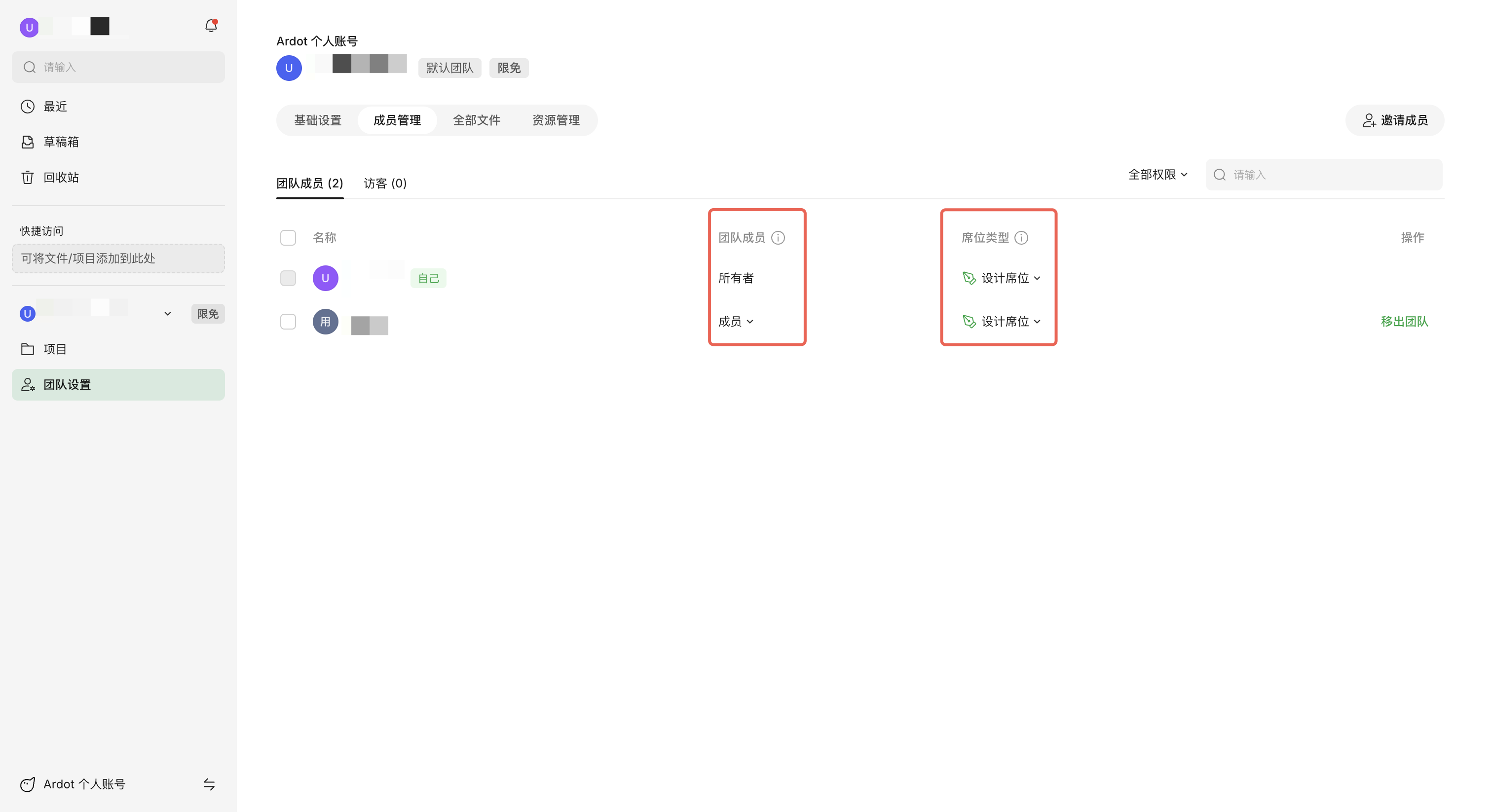
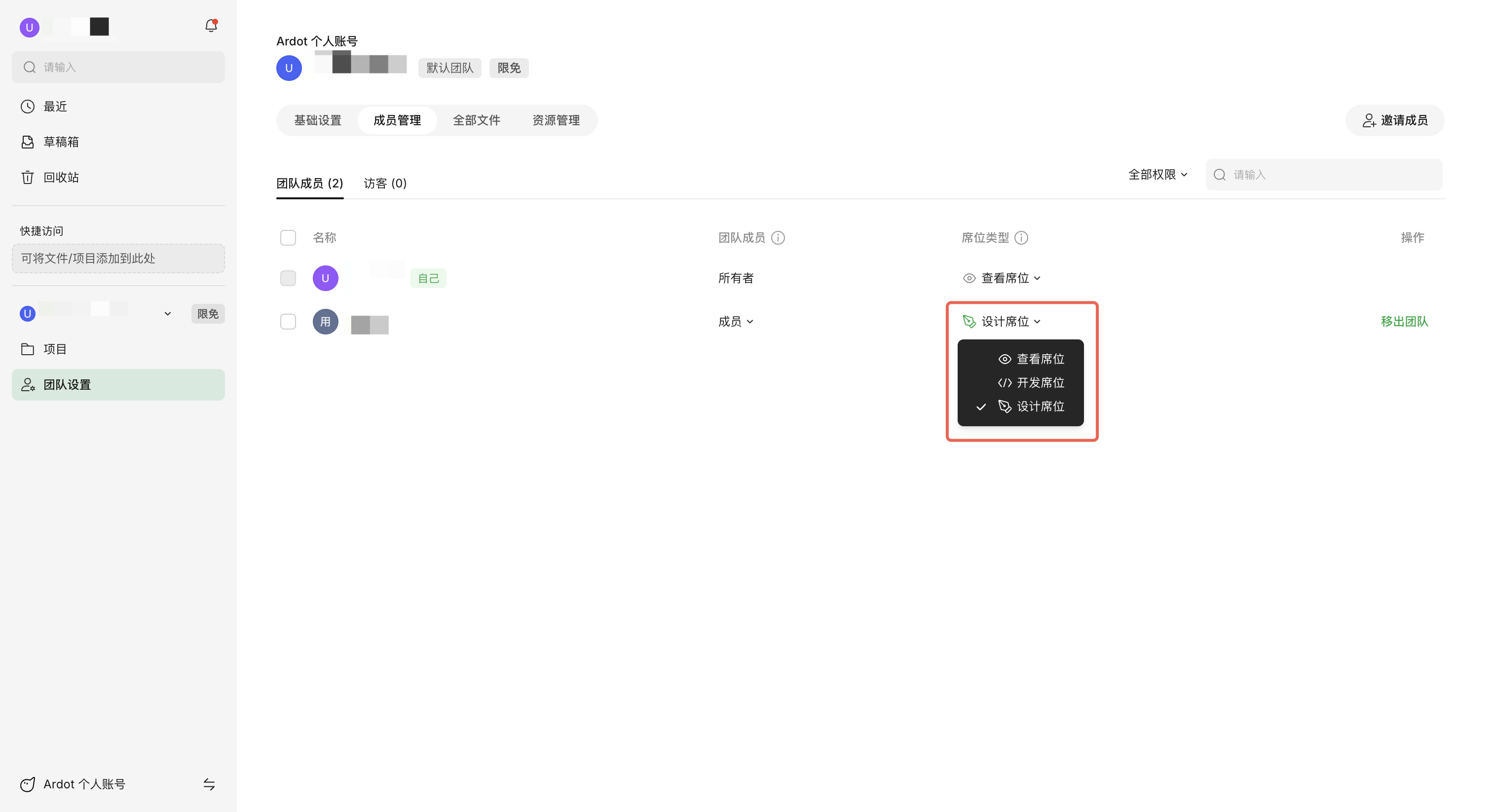
During the limited-time free period, both design seats and developer seats are assigned centrally by the team administrator or team owner in the team management screens. Members can check their seat type under "Team Settings → Member Management"; seat assignment and changes are also handled here by the team administrator / owner.
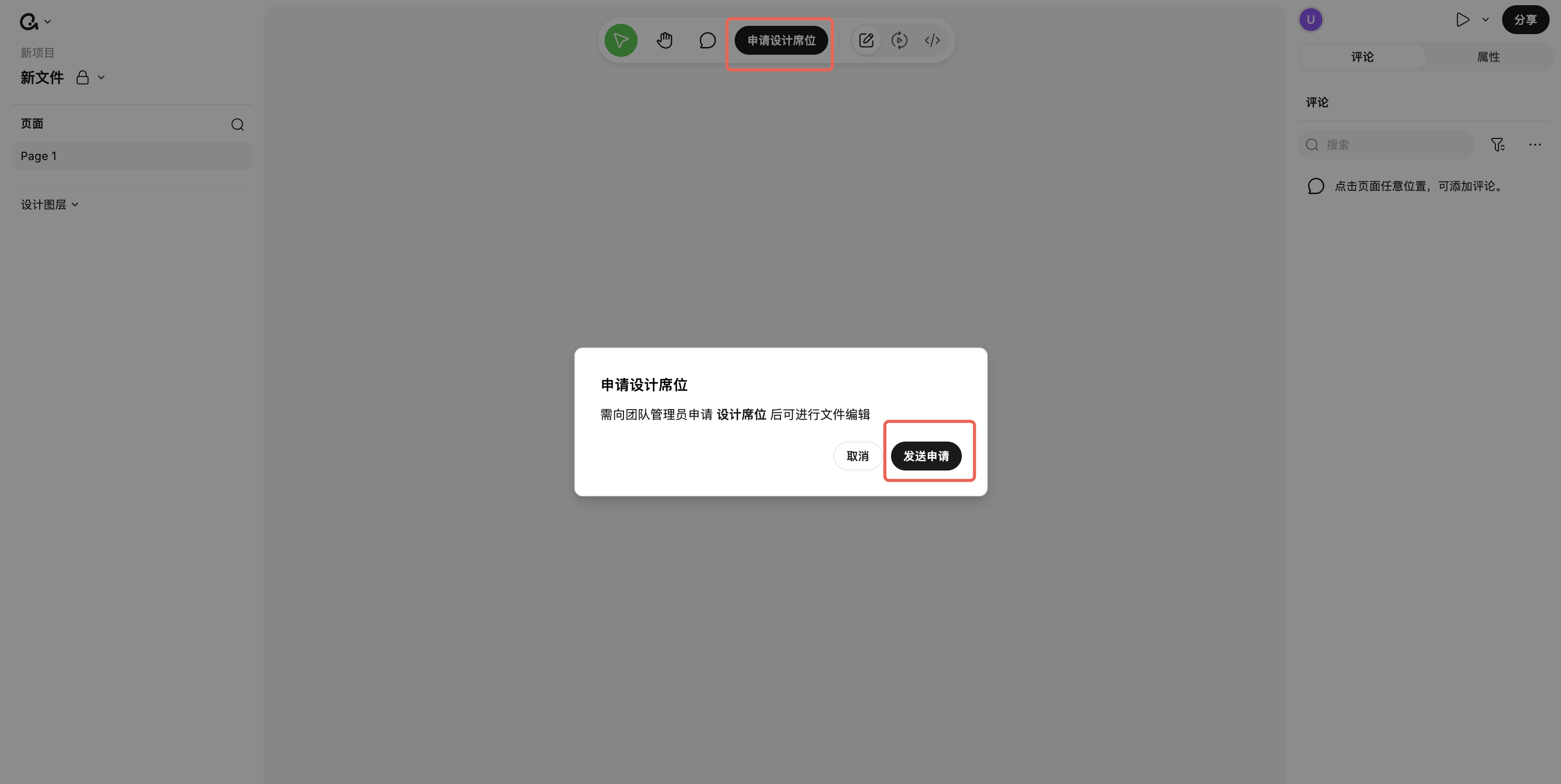
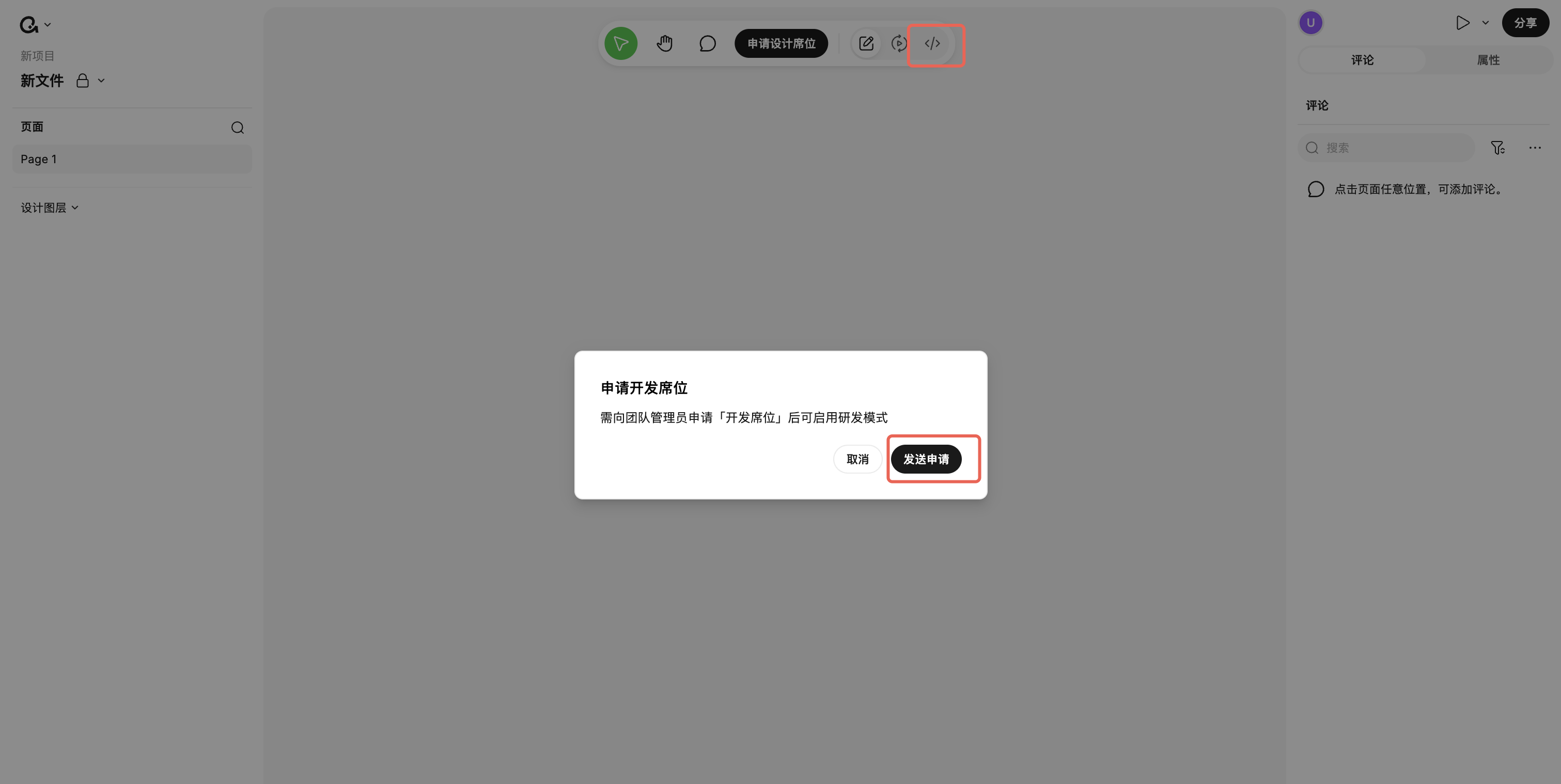
When a member needs a design or developer seat, they submit a seat request to the team administrator / owner. Once approved, the seat is granted.
Seats and permissions
After the upgrade, Ardot separates admin role, seat, and file permission:
| Dimension | Description |
|---|---|
| Admin role | Determines whether you can manage a team and its members. Split into "Administrator" and "Member"; the team administrator holds the highest permission in the team. |
| Seat | Determines what type of collaboration capability you have. Split into design seat, developer seat, and viewer seat. |
| File permission | Determines which specific files you can view or edit. Set by the file owner or someone authorized to manage the file. |
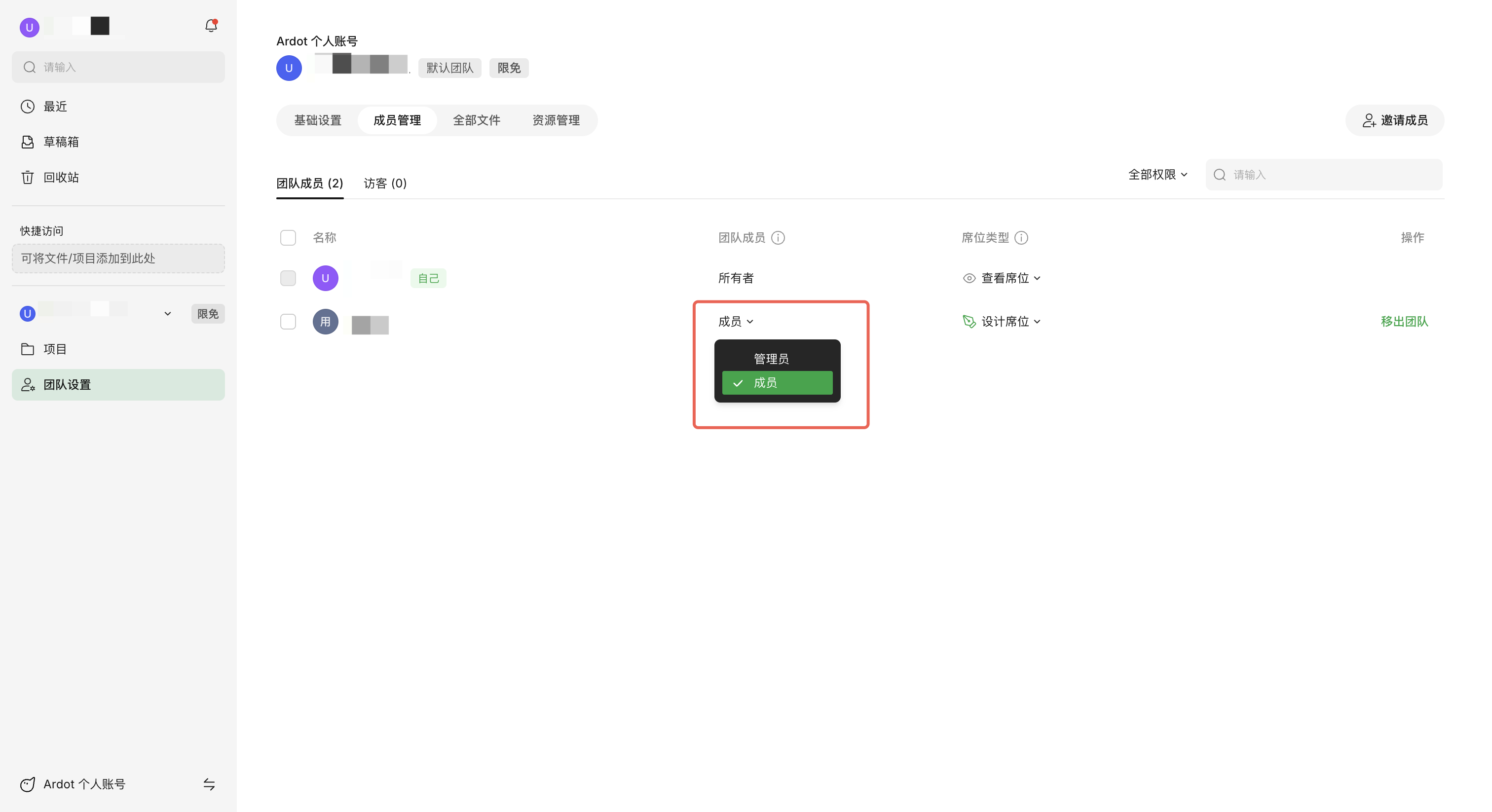
Editing a team file requires an active design seat AND file edit permission. Admin role or file edit authorization alone cannot replace a design seat.
| Design seat | File authorization | Result |
|---|---|---|
| Active | Edit permission | You can edit the file. |
| Active | View-only | You can view but not edit. Request edit permission from the file owner; once approved, you can edit. |
| Unassigned | Edit permission | You cannot edit team files; the team administrator must assign a design seat. |
Design seat vs. developer seat
Ardot offers three seat types, which determine what collaboration capability you have in the team:
| Seat type | Suited for | Can edit team files? |
|---|---|---|
| Design seat | Design file creation and editing, team design collaboration. | Yes, but you still need edit permission on the file. |
| Developer seat | Fetching design resources and dev collaboration; dev mode is available standalone. Capabilities depend on product entitlement and file settings. | No. Does not grant edit permission on design files. |
| Viewer seat | Viewing files you have access to and commenting. Viewer is the default seat — you don't need a design or developer seat for viewing, but you still need file access authorization. | No. Does not grant edit rights on team files, and does not include dev mode. |
Scenarios that require a design seat
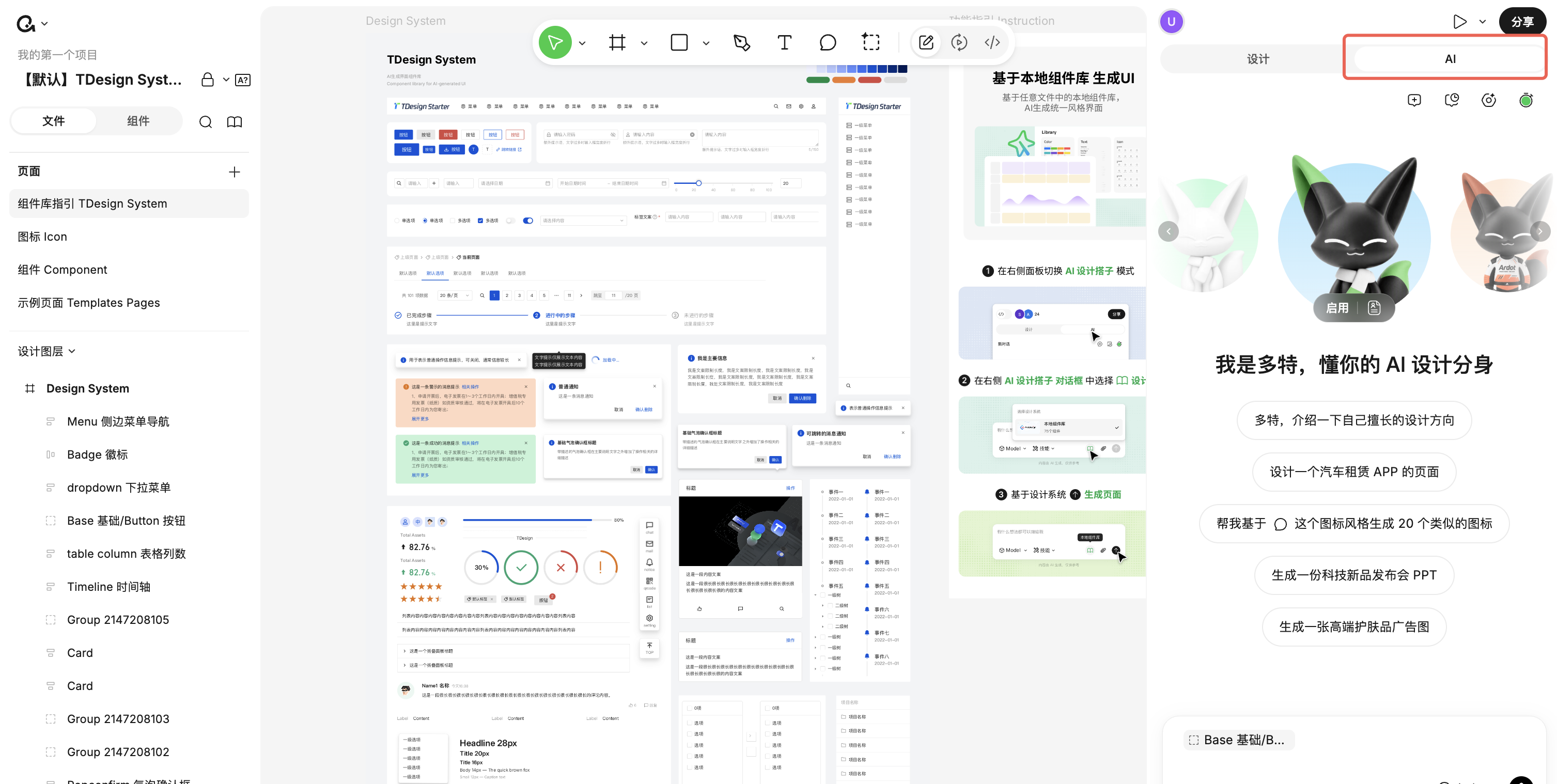
Typical scenarios that need a design seat:
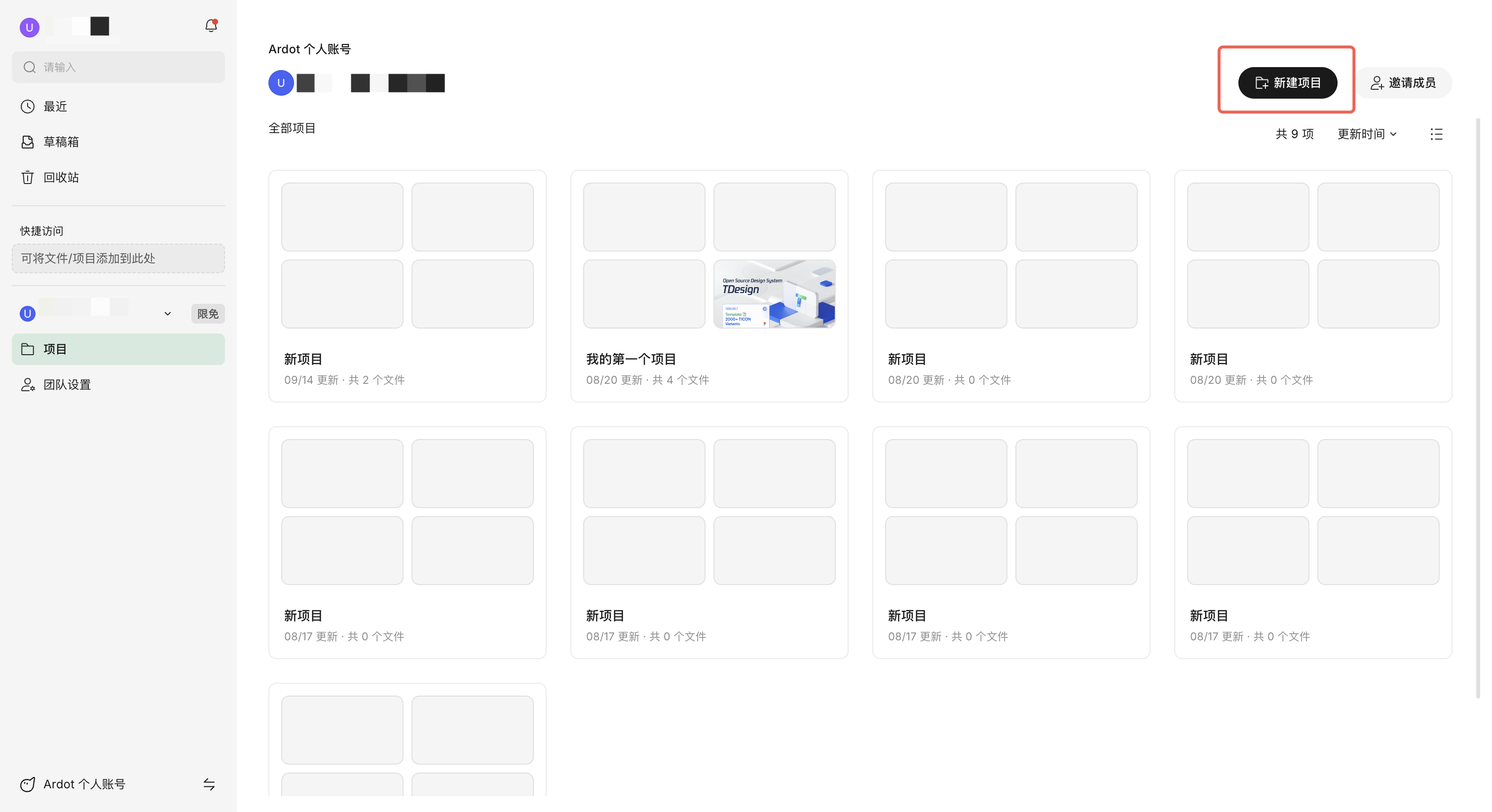
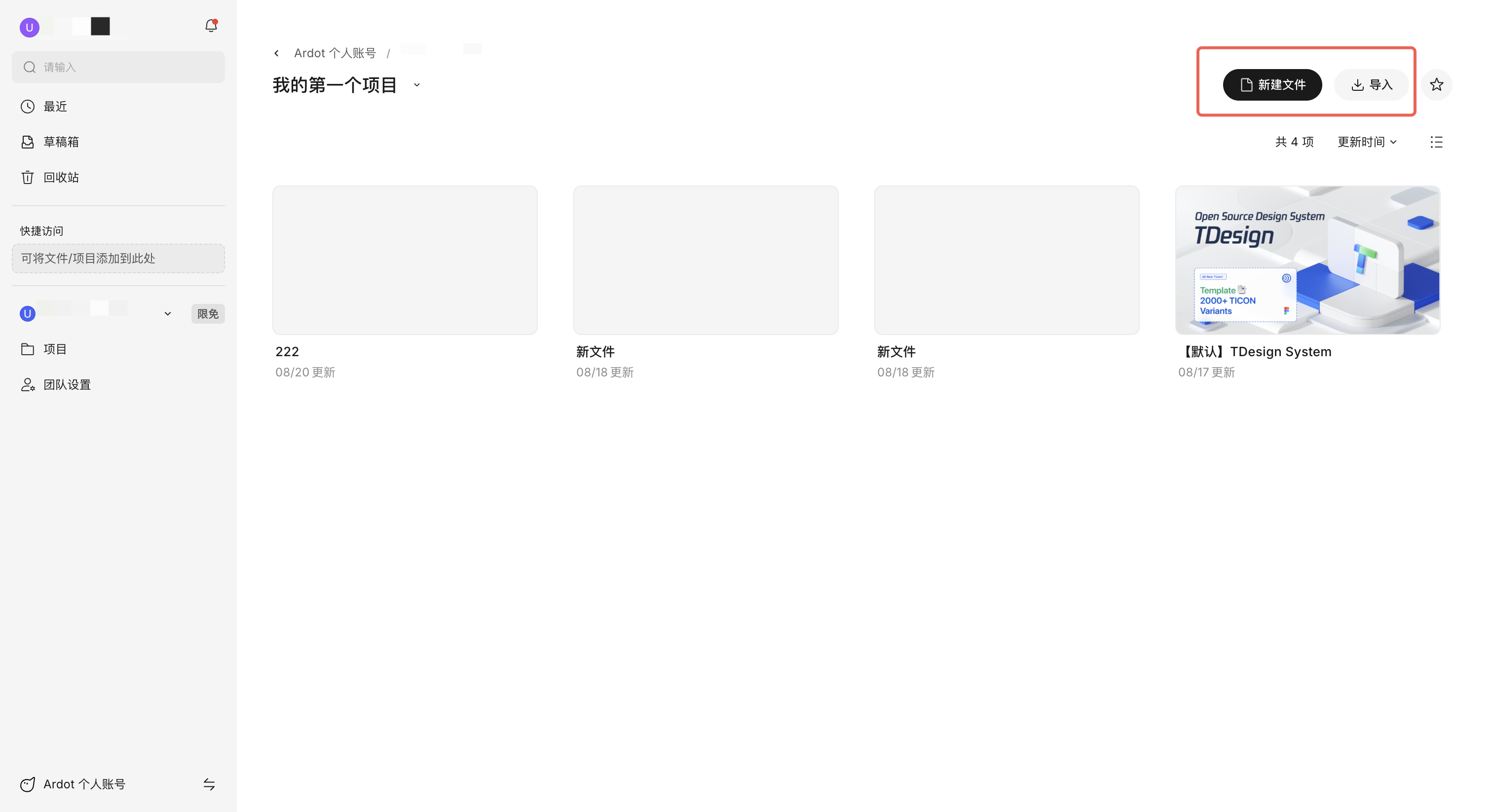
Create, import, or edit a design file in a team space.
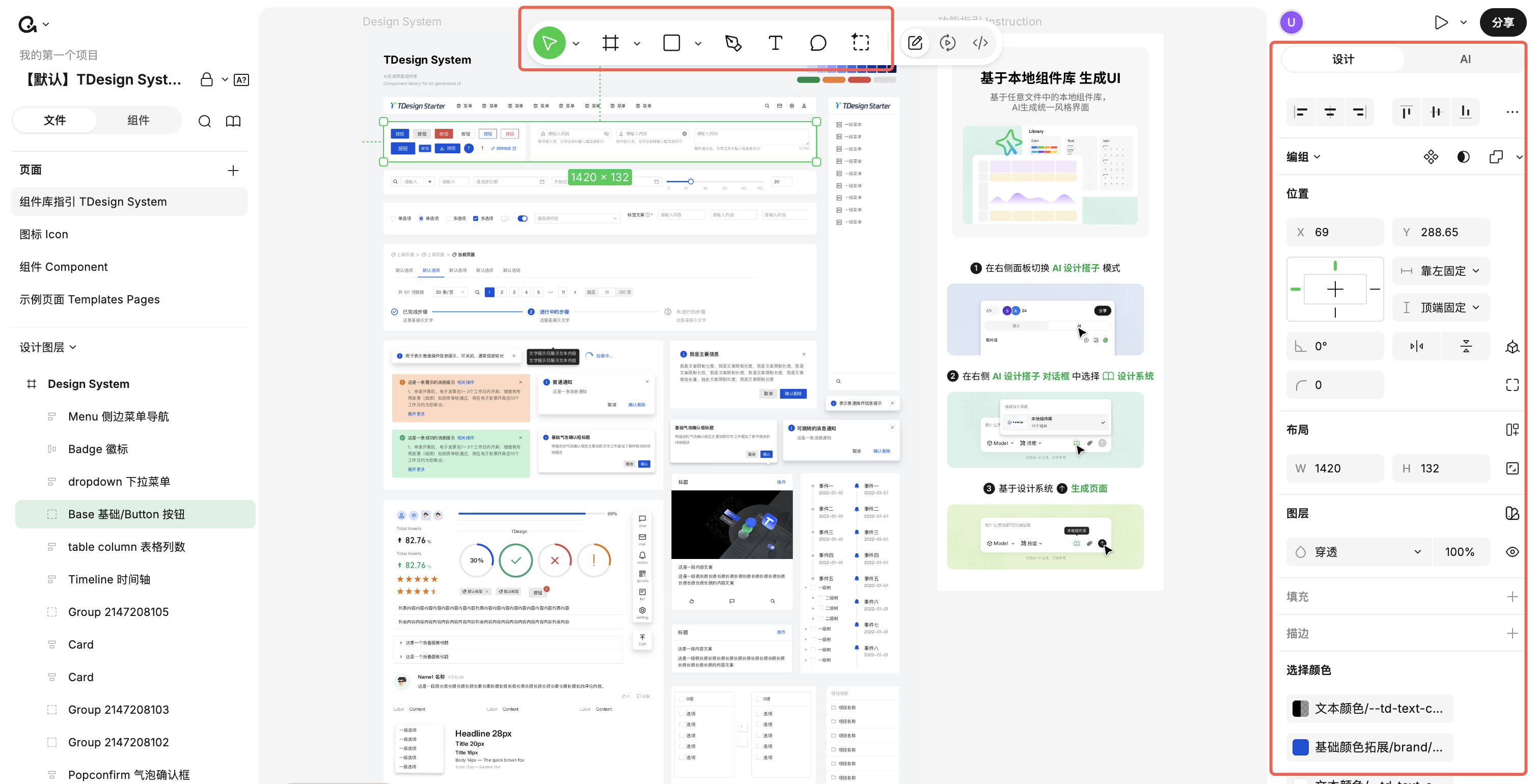
Modify design content, components, or styles in a team file.
Use AI to modify a team file; your account also needs enough AI credit balance.
Scenarios that do NOT require a design seat because of this upgrade:
- Viewing files you already have access to.
- Posting comments on files you have access to.
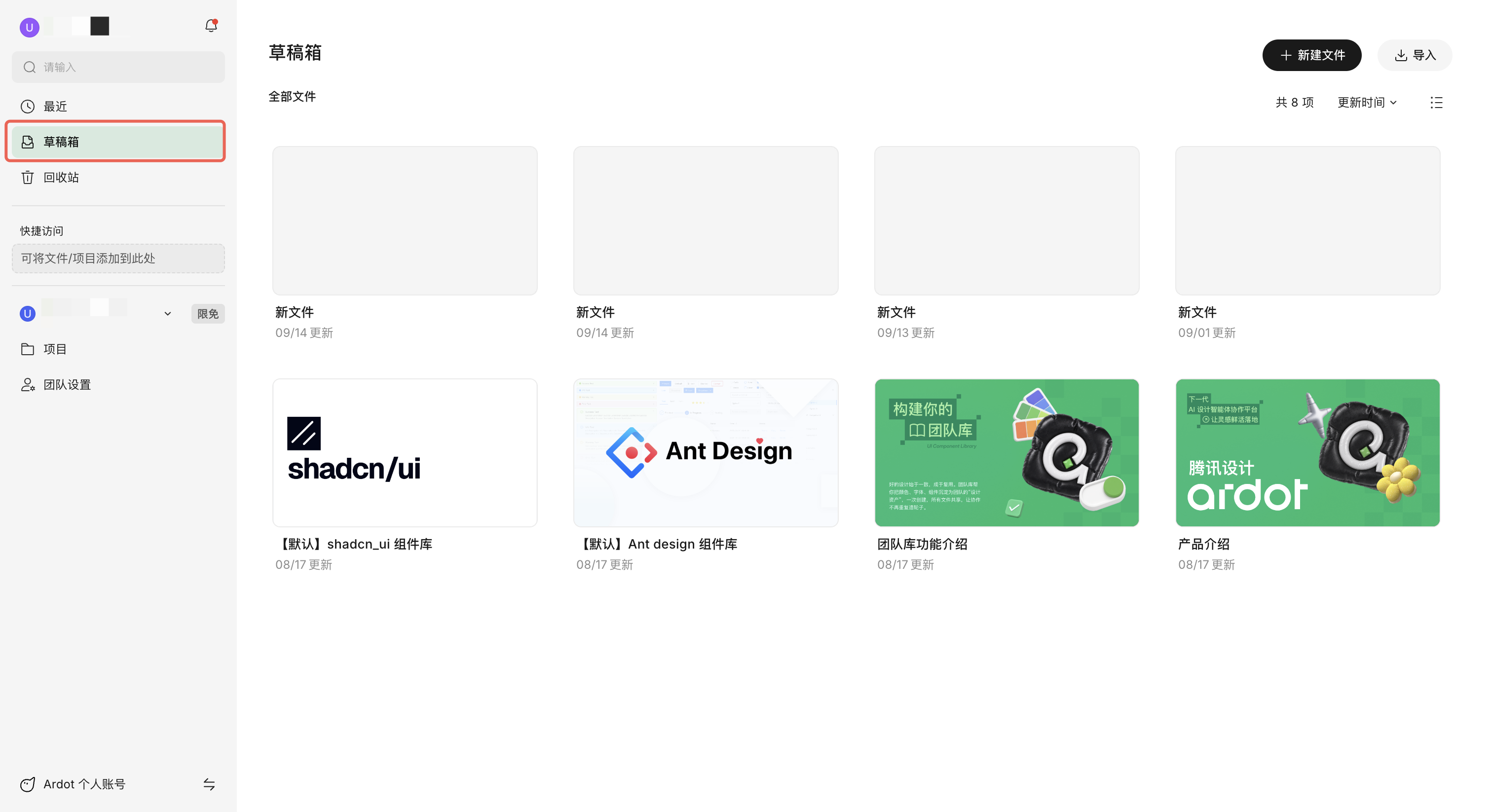
- Editing your own files in the personal drafts area.
Scenarios that require a developer seat
Typical scenarios suited for a developer seat:
- Use dev mode to inspect specs, annotations, slices, and code info of design files.
- Fetch design resources (components, styles, assets) for development.
- Participate in design-dev handoff without modifying design source files.
A developer seat does not grant edit permission on design files. Members who need to edit design files in a team space should be assigned a design seat.
Common operations and required seats
The following applies to team files. Personal drafts follow their own rules.
| Operation | Design seat required? | Additional requirements |
|---|---|---|
| View a file | No | Granted access to the file. |
| Post a comment | No | Access to the file, and compliance with the applicable comment rules. |
| Create or import a file in a team space | Yes | Appropriate permission on the target space. |
| Edit design content, components, styles | Yes | Edit permission on the file. |
| Use dev mode and fetch resources | Developer seat or design seat | File access, in line with resource fetch, copy, or export settings. |
| Use AI to modify a team file | Yes | Edit permission on the file, with enough AI credit balance on the account. |
| Share or adjust collaborators | Not seat-only | File management permission, in line with team sharing rules. |
| Copy, move, or delete | Yes | Depends on file ownership, collaboration role, copy settings, and source/target space rules. |
I'm a team member
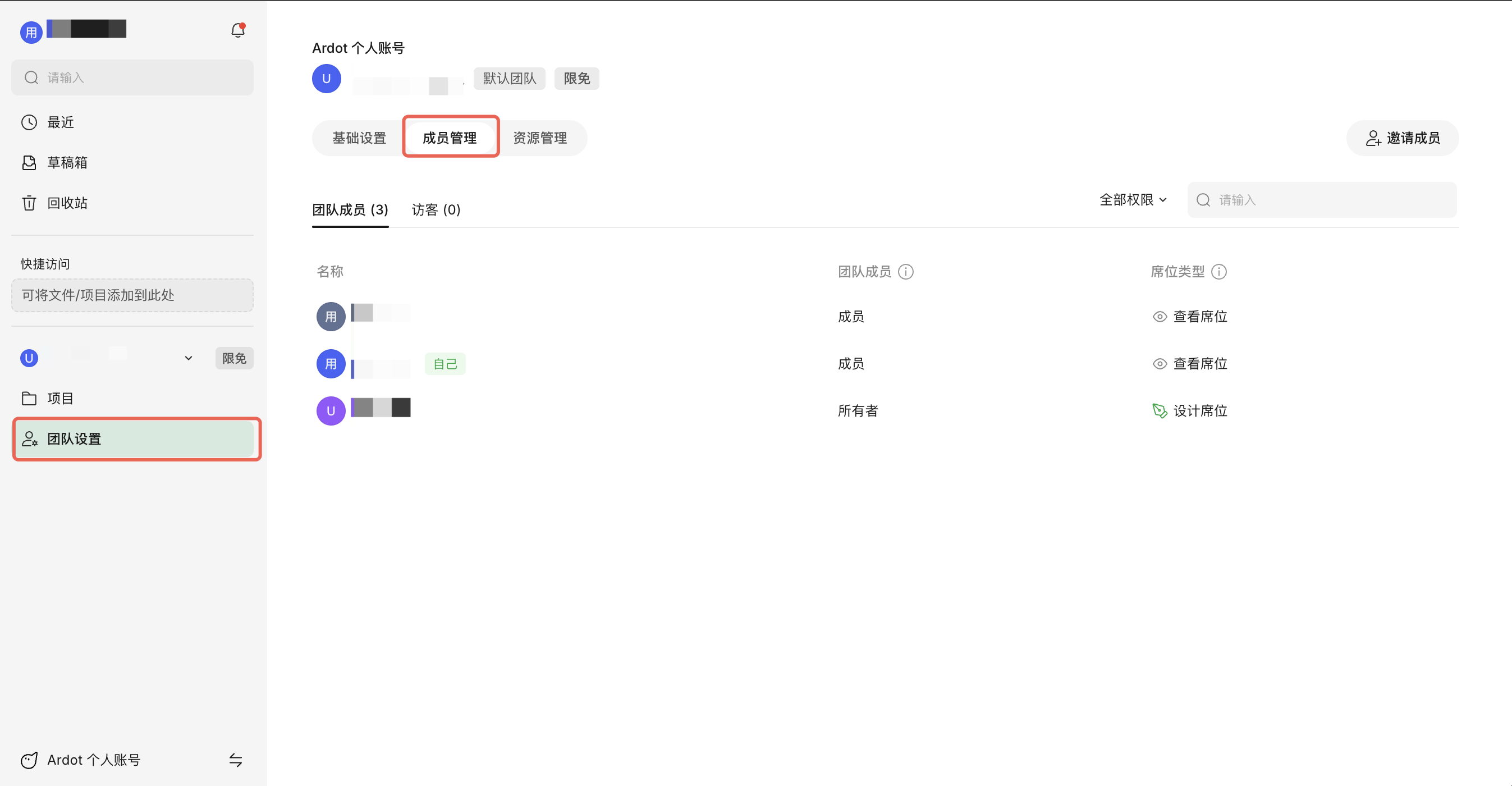
Where do I check my seat status
Go to Team Settings → Member Management in your current team, find the entry marked "self", and read the Seat type column.
How do I get a design seat if I don't have one
Open the relevant team file or team settings, and submit a seat request per the prompts; the team owner / administrator will approve it. Once approved, you receive the seat.
If you only lack edit permission on a specific file, click "Request edit permission" on the file page, and the file owner will approve it.
Why can't I edit a file I used to be able to edit
After the upgrade, editing a team file requires an active design seat. If you previously could edit but no longer can, the design seat for the current team may not be assigned — contact your team administrator to verify and handle it.
If the page says file edit permission is missing, click Request edit permission and follow the prompts; the file owner will approve it.
I'm a team administrator
In the limited-time free edition, the team administrator (team owner) is the highest-permission role inside a team and is responsible for team-level seat and access management. Team administrators also need an active design seat and file edit permission to edit team files.
Approve seat and access requests
Team-level approvals handled by the team owner / administrator fall into two kinds:
Seat requests: when a member requests a design or developer seat, you'll see a pending item in the approval entry; approve it to grant the corresponding seat.
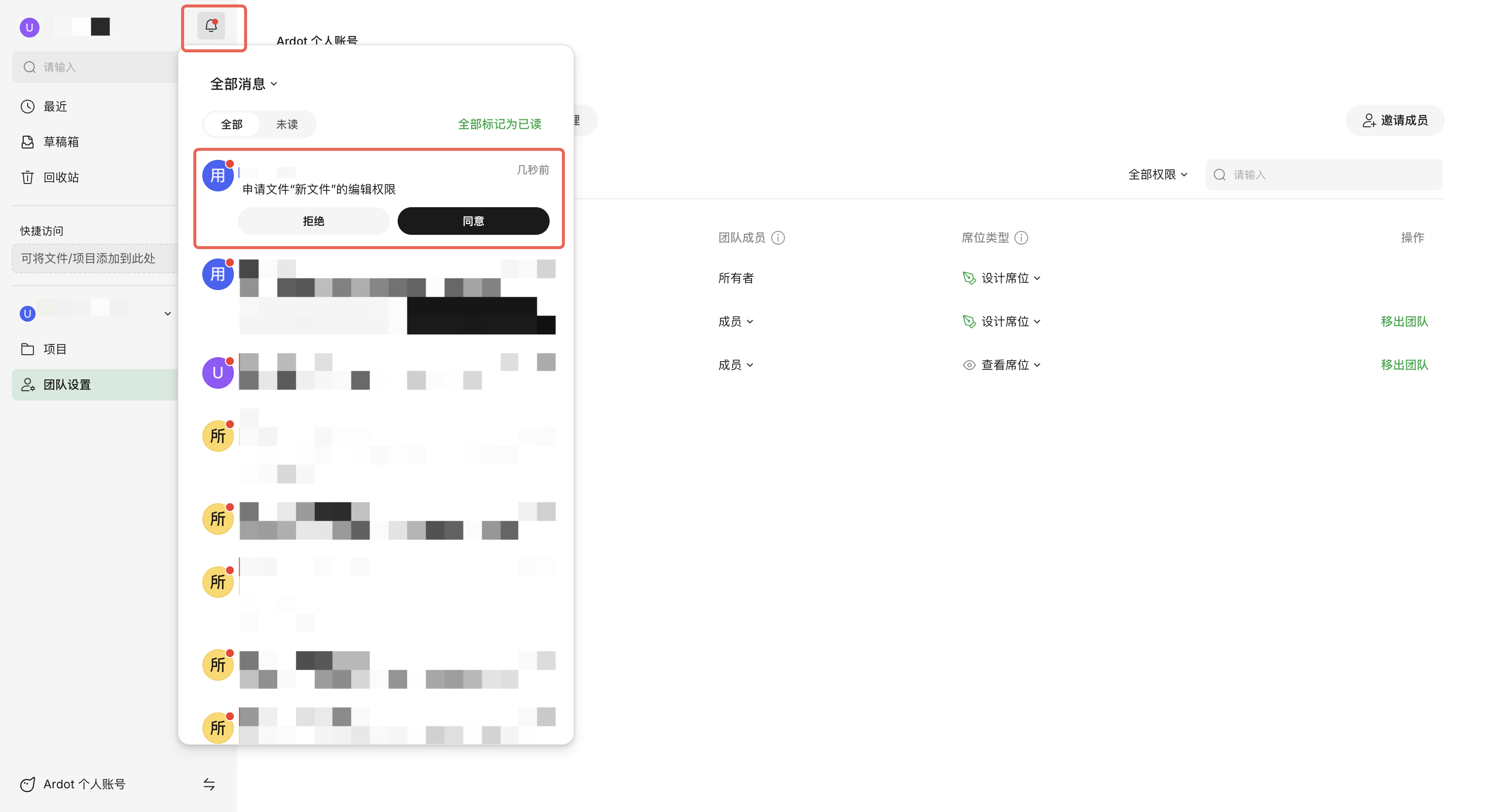
Team access requests: when a member requests to join the team or access team content, you decide whether to approve.
File-level edit permission requests are not handled centrally by the team administrator — they are handled by the file owner.
Resolve member permission issues
Find the member's situation below and apply the matching resolution.
| Member report | Resolution |
|---|---|
| Can view, can't edit | First check the member's seat record under "Team Settings → Member Management"; if no design seat has been assigned, approve the seat request or assign one. If the file page says edit permission is missing, have the member click "Request edit permission" so the file owner can approve it. |
| Seat is assigned but editing still fails | Confirm the assigned seat is a design seat, and that the team and member account match the ones actually used. If the file page says edit permission is missing, have the member submit "Request edit permission". If a design seat is already assigned but editing still fails and the cause is unclear, investigate further. |
| Member missing from the seat request list | Confirm the member has joined the current team; if not, handle the team access request first, then the seat request. |
| Only some files cannot be edited | Have the member open the restricted file. If it says file edit permission is missing, submit "Request edit permission" to the file owner. If it says the design seat is missing, handle the seat request. |
| Manual editing works, AI does not | If the page says AI credit balance is insufficient, top up credits and try again. No need to re-assign the Ardot design seat for this reason. |
FAQ
Do I need a design seat just to view and comment
No. As long as you have file access and comply with the team rules, you do not need a design seat to view or comment.
Not having a design seat does not mean you can access every file inside the team — file authorization and sharing scope still apply.
Do team administrators also need a design seat
Yes. Team administrators also need an active design seat and edit permission on the file to edit a team file.
Admin role determines which team affairs you manage; it does not replace file edit eligibility.
Can a developer seat edit design files
No. A developer seat does not grant edit permission on design files. It is for using dev mode, fetching design resources, and dev collaboration; capabilities depend on product entitlement and file settings.
If you need to edit team design files, ask your team administrator to switch you to a design seat and confirm that you have edit permission on the file.
Developer seat or design seat — which should I pick
Choose based on your actual work:
- Mostly design work, modifying design files, maintaining components and styles → Design seat.
- Mostly inspecting specs, fetching slices and resources, handling dev handoff, without modifying design sources → Developer seat.
Developer seats fit developers and others who don't need to edit design files; design seats include full editing capability.
Who approves seat requests
By request type:
- Team seat requests and team access requests → approved by the team owner / team administrator.
- File edit permission requests → approved by the file owner.
Does this affect my personal drafts
This seat control does not change the basic editing rules of your personal drafts. Editing your own files in personal drafts does not require a design seat.
Once a file enters a team collaboration space, team file rules apply. AI features in personal drafts still require sufficient AI credit balance on the account — not every AI feature is unlimited.
How do existing collaborators' permissions change after the upgrade
The upgrade preserves existing collaboration as much as possible: previous "Editor" members map to the "Design seat" capability, and previous "Viewer" members map to the "Viewer seat" capability. After the upgrade, we recommend reviewing each member's seat type under "Team Settings → Member Management".
Quick lookup
Find the situation that matches you below for the matching resolution.
| Common situation | Resolution |
|---|---|
| I can still edit normally | Keep using Ardot; no need to resubmit a seat request. |
| I can only view a file, no design seat yet | Submit a seat request for the team administrator to approve. |
| I have a design seat but still can't edit | Verify team, account, validity, and file edit permission; if the file permission is missing, submit "Request edit permission". |
| I only need to view or comment | No design seat is needed once file access is granted. |
| I only edit my own personal drafts | No design seat is needed; AI usage follows the credit rules. |
| I want to use dev mode or fetch resources | Use a developer seat; a design seat is not required. |
If you have any issues or suggestions, please share them via the Ardot feedback entry.