
Desktop MCP
Desktop MCP is served in the background by the Ardot client when a design file is open. The agent operates directly on the design file currently open on your machine.
Start the Ardot client
If you have not installed the Ardot client yet:
- Visit the Ardot website to register and sign in.
- Download the client and launch it.
Graphical setup
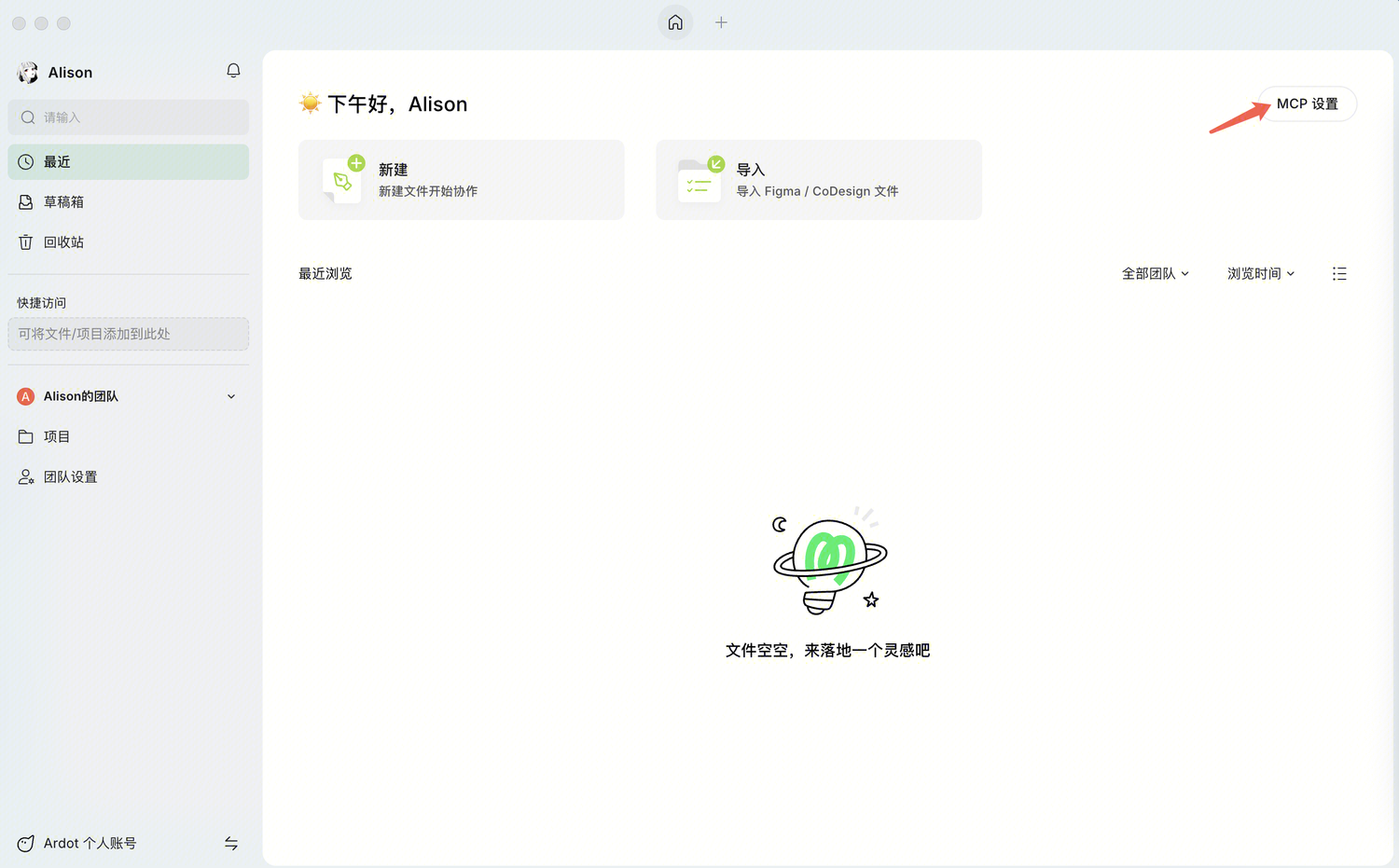
Click the MCP configuration entry in the top-right corner of the Ardot client home page.
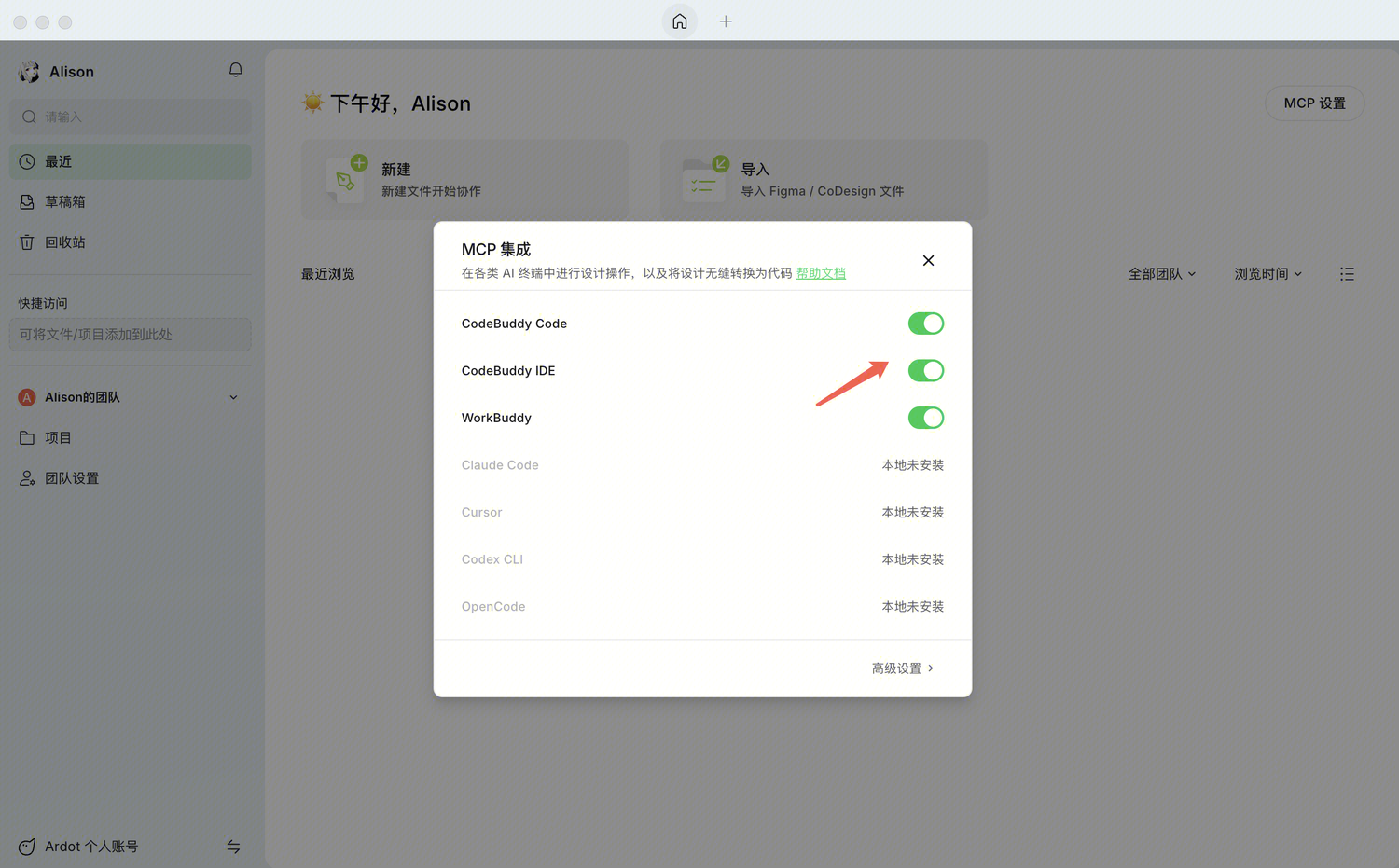
In the configuration dialog, enable the AI agent you use.
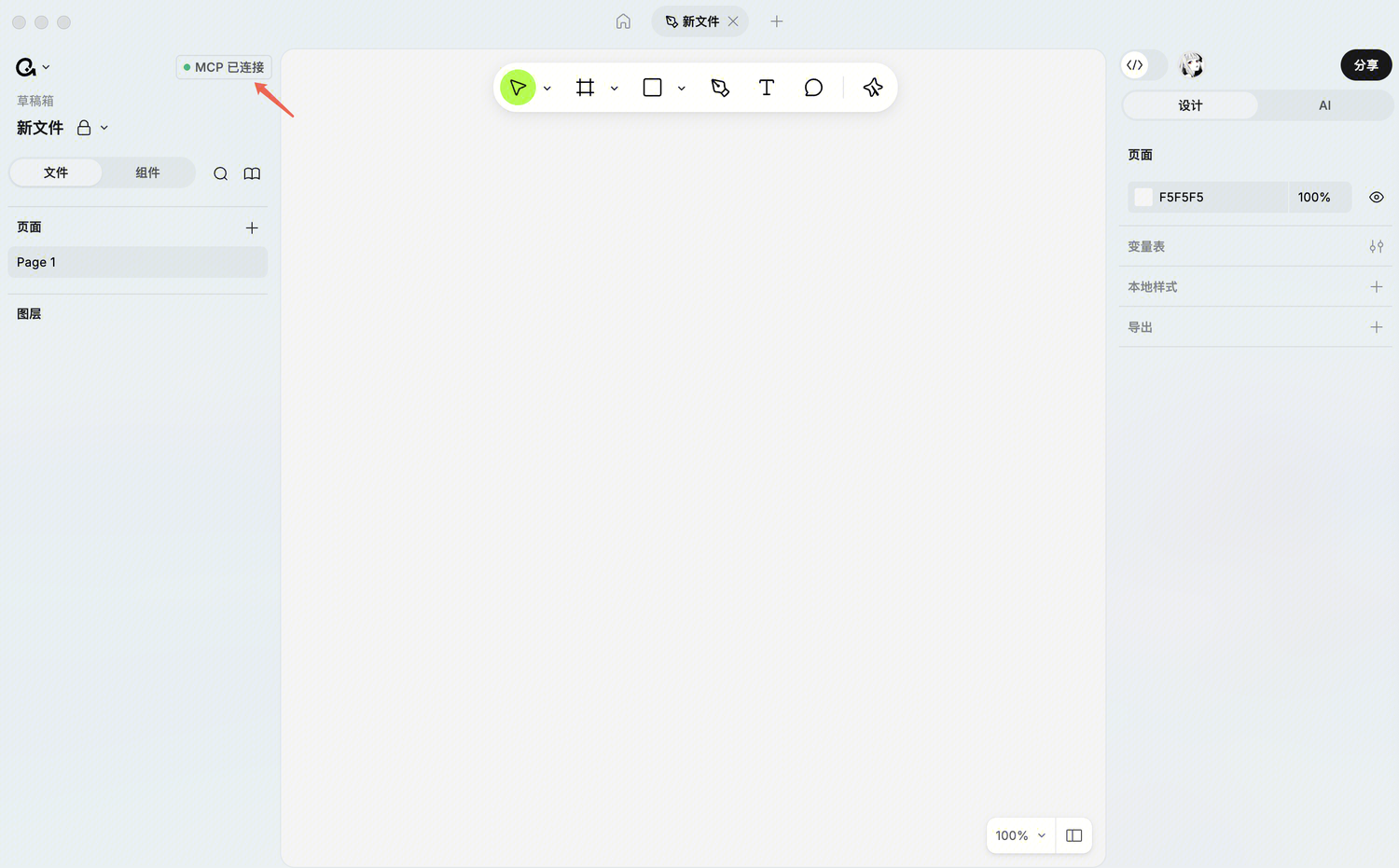
Open any Ardot design file and check that the service connection is working.
After configuration, open a new chat and have the agent run a simple check—for example: “Create a red rectangle in Ardot.” It should connect to the currently open design file and create the corresponding node.
Custom configuration
When Desktop MCP starts, it listens on port 50501 by default (if that port is taken, it automatically tries another). You can configure it in any AI agent that supports the MCP protocol.
{
  "ardot": {
    "type": "http",
    "url": "http://127.0.0.1:50501/api/v1/mcp"
  }
}
If the tool shows as connected but the agent still cannot call it, try restarting the agent session or toggling the MCP service off and on to re-establish the connection. For more, see Troubleshooting.