

Troubleshooting
When connection fails, tools are unavailable, or calls error out, first confirm which access method you are using, then follow the matching section.
- Desktop MCP
- Remote MCP
Regardless of method, work through the steps below in order. Most connection issues are resolved in the first few steps.
Confirm access method matches configuration
Is the agent configured with a local address or the cloud URL? Does that match how you are actually using MCP?
Confirm versions are recent enough
Upgrade the Ardot client, AI agent, and related plugins/extensions to the latest stable versions when possible.
Confirm the basic environment works
- Desktop MCP: the machine can reach the MCP service port; firewall/proxy is not blocking the local loopback address.
- Remote MCP: the network can reach
https://ardot.tencent.com/mcp, and OAuth / trust flows are complete.
Confirm design context exists
When you need to read or write the canvas, the target design file should be open, or you should have provided a usable file/node link in the conversation.
- Desktop MCP: a design file is open.
- Remote MCP: a usable file/node link has been provided.
Confirm MCP is active on the agent side
In the AI agent's MCP / connectors panel, the corresponding service shows as connected and lists Ardot-related tools.
Run a minimal check
Start a new chat and run a simple instruction (for example create a rectangle, or read the currently selected node) to rule out interference from cached session history.
When troubleshooting, keep the full error text (including
code/message) so you can share it with support.
Desktop MCP
Desktop MCP is served in the background by the Ardot client when a design file is open. It listens on 127.0.0.1:50501 by default (the port may switch automatically if that one is taken).
Self-check guide
Confirm in order:
Is the service running? In a browser, open
http://127.0.0.1:50501/api/v1/healthand confirm the health check returns OK. You can also openhttp://127.0.0.1:50501/api/v1/agentsto inspect agent-related status.Is the Ardot client ready? The client is running and the target design file is open (the service is usually available only while a file is active).
Is the design file connected to MCP? In the client, confirm the current file is connected to MCP (status indicator is normal).
Does the agent config point at the right address? The URL in the config should match the actual port, for example:
json{ "ardot": { "type": "http", "url": "http://127.0.0.1:50501/api/v1/mcp" } }Can the agent reach the local port? Some sandboxed / remote development environments cannot reach the host's
127.0.0.1. Use a direct local connection or Remote MCP instead.Recovery steps if it still fails Toggle MCP off and on → restart the agent → restart the Ardot client → reopen the design file.
For more configuration details, see Desktop MCP.
Call error NO_ADAPTER
If you see:
NO_ADAPTER: No design file is open or connected. Please open a design file and try again.This usually means there is no available design-file adapter. Confirm:
- A design file is open in the Ardot client.
- That design file is connected to MCP.
- If both look fine, refresh the tab or restart the Ardot client, then try again.
Config error CONFIG_PARSE_ERROR
If opening http://127.0.0.1:50501/api/v1/agents returns an error like:
{
  "error": {
    "code": "CONFIG_PARSE_ERROR",
    "message": "Failed to parse config file: ~/.codebuddy/.mcp.json (error at offset 487)",
    "status": 409
  }
}
The MCP config file JSON cannot be parsed. Check the related config file for trailing commas, missing quotes, comments, or other invalid JSON/TOML syntax.
You can ask an AI agent to fix it, for example:
Help me fix the errors in the MCP config file. The error message is:

<paste the full error here>
After fixing, reload MCP / restart the agent.
Permission error PERMISSION_DENIED
If opening http://127.0.0.1:50501/api/v1/agents or enabling MCP returns PERMISSION_DENIED, a common cause is that the config file (or a parent directory) was created or modified as administrator / root, so ownership is root, while the Desktop MCP service runs as your normal user and cannot read or write those files.
Typical triggers include installing or editing agent / MCP configs with sudo, or launching related tools with admin privileges.
Fix: change file ownership back to the current user. Use the path from the error message—for example CodeBuddy config:
# Check ownership (if Owner is root, that confirms it)
ls -l ~/.codebuddy/.mcp.json

# Change file ownership back to the current user (replace the path as needed)
sudo chown "$(whoami)" ~/.codebuddy/.mcp.json

# If the whole config directory is owned by root, fix it together
sudo chown -R "$(whoami)" ~/.codebuddy
For other agents, replace the path with the config file or directory from the error (for example Cursor's MCP config directory).
You can also hand the full error to an AI agent:
Help me fix MCP config file permissions: the config was created/modified by root, and the local Node service runs as a normal user, causing PERMISSION_DENIED. The error message is:

<paste the full error here>
After fixing, reload MCP / restart the agent, then hit the health check or Agents endpoint to confirm recovery.
Remote MCP
Remote MCP connects via https://ardot.tencent.com/mcp and depends on network and authorization state.
Self-check guide
- Is the URL correct? Agent config should point at the official cloud URL; type is usually
http. - Have you completed trust and OAuth? First-time connections usually require trusting the MCP in the agent and completing sign-in authorization.
- Account and file permissions Does the signed-in account have sufficient permission on the target design file?
- Have you provided file context in the conversation? In remote scenarios, you often need to paste a file or node link so MCP can locate the target.
- Network and proxy Corporate proxies, VPNs, or certificate interception can cause handshake failures; first confirm the service is reachable in a browser.
- If it still fails Re-authorize → delete and recreate the MCP entry → start a new chat and retry.
For more configuration details, see Remote MCP. For billing, see Permissions & billing.
Common tool-call issues
These usually occur when MCP is connected but a specific tool call fails.
batch_edit operation errors
- Ensure every Insert / Copy / Replace operation has a binding name.
- Keep each call under 25 operations.
- Do not use Update on descendants of nodes you just copied, because child node IDs are regenerated.
Screenshot is empty or incomplete
- Confirm that
nodeIdpoints to a node visible on the canvas. - Check that the node has actual content (empty frames usually do not produce meaningful screenshots).
batch_read returns little information
When reading large amounts of data—for example properties for 500+ nodes at once—the response is huge and consumes a lot of context window, so the tool returns a reduced payload. Prefer reading in batches.
Still unresolved after troubleshooting
If the problem remains after the checks above, gather diagnostic information before asking for help. Complete, reproducible feedback shortens investigation time significantly.
1. Collect this information first
| Item | Notes |
|---|---|
| Access method | Desktop MCP / Remote MCP |
| Environment | OS and version; Ardot client version; AI agent name and version |
| Config summary | MCP server name, type, URL (redact sensitive info); whether OAuth is complete |
| Reproduction steps | Shortest path from opening the file / starting the agent to the failure |
| Expected vs actual | What should happen vs what happened |
| Full error text | Complete error code and message—not a partial screenshot only |
| When it happened | Approximate time, for log correlation |
| Attachments | Screenshots, short recordings, relevant log snippets |
2. Attach logs (Desktop MCP)
When Desktop MCP fails, attach Ardot runtime logs so we can locate the issue faster. Find the log folder for your system:
macOS
Open Finder.
From the menu bar, choose Go → Go to Folder… (or press
Shift+Command+G).Paste the path below and press Enter:
text~/Library/Logs/ardotYou will land in the log folder.
Windows
Press
Win + Rto open Run.Paste the path below and press Enter:
text%LOCALAPPDATA%\ardot\logsYou will land in the log folder.
Do not attach content that includes passwords, tokens, internal network addresses, or customer data. When unsure, prefer the few
.logfiles closest in time to the issue.
3. Get help
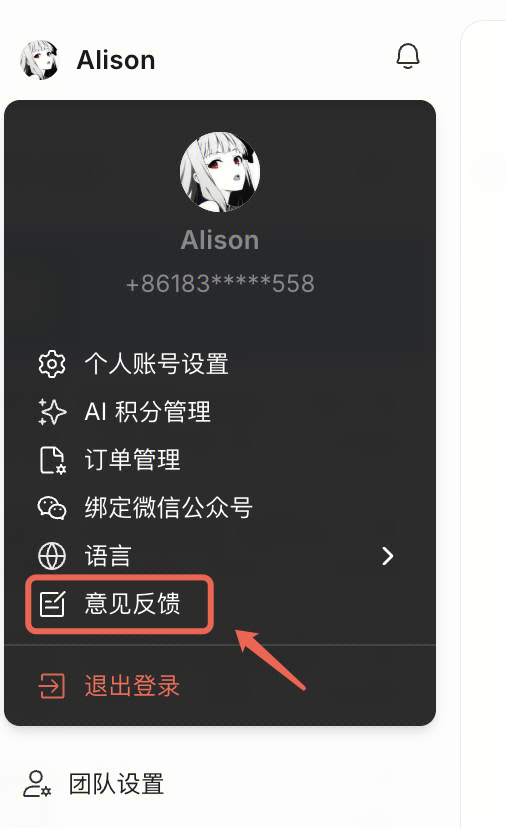
In Ardot, click the avatar icon in the top-right corner, choose Feedback, and fill in the problem description and attachments. Include the information and logs above so the team can reproduce the issue quickly.
For more ways to get help, see Contact us. If you can share a minimal reproducible example (for example a redacted public design file link, or a minimal MCP config), investigation is usually faster.