

Ardot MCP Usage Guide
Ardot MCP Server helps developers explore and implement designs more quickly and accurately:
- Retrieve design context from Ardot design files, with support for reading, editing, and generating based on the design
- Enhance the way design components and Code Connect work together (coming soon)
Heads up: MCP currently works only inside the Ardot desktop app. A cloud-based MCP that doesn't require installing the desktop client is on the way — stay tuned!
As additional context, Ardot MCP Server is a Model Context Protocol server implementation provided by Tencent Design Ardot, enabling AI coding assistants (such as Claude, Cursor, Windsurf, CodeBuddy, etc.) to directly read and manipulate Ardot design files for seamless design-code integration.
Quick Start
1. Prepare your environment
- Use an AI agent or code editor that supports MCP servers, such as CodeBuddy, WorkBuddy, Cursor, Claude Code, and Codex.
- We recommend using CodeBuddy or WorkBuddy first.
2. Visit Ardot and sign in
- Visit the Ardot website to register and sign in.
- Download the desktop app and open any design file in the client.
Download Ardot Desktop App
| Platform | Chip/Architecture | Download |
|---|---|---|
| macOS | Apple Silicon (M1/M2/M3/M4) | Ardot_latest_macOS_arm64.dmg |
| macOS | Intel | Ardot_latest_macOS_x86_64.dmg |
| Windows | Desktop | Ardot_Setup_latest_x86_64.exe |
- Note: Ardot supports both the macOS desktop app and the web version (desktop browser), but Ardot MCP currently prioritizes support for the macOS desktop app.
How to Use the MCP Server
MCP Server Entry Point
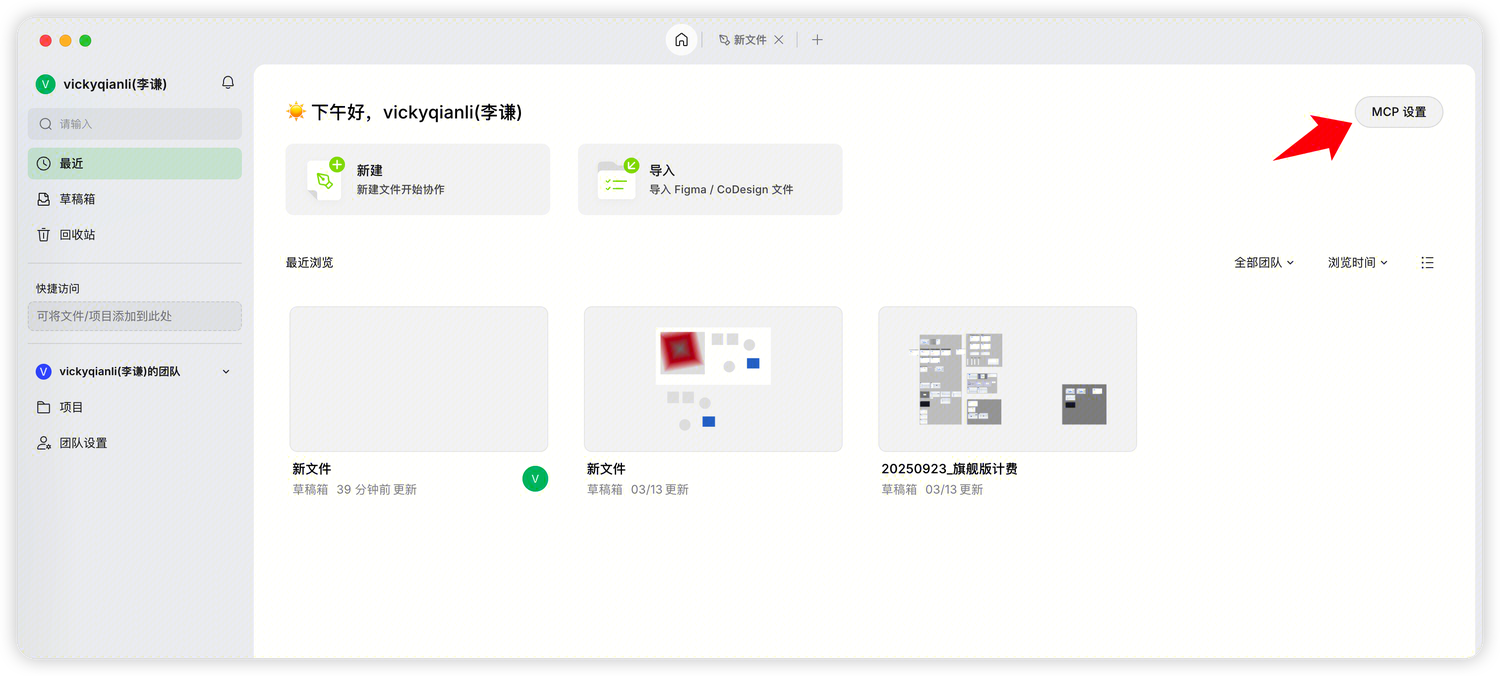
Click the MCP configuration entry in the top-right corner of the Ardot home page.
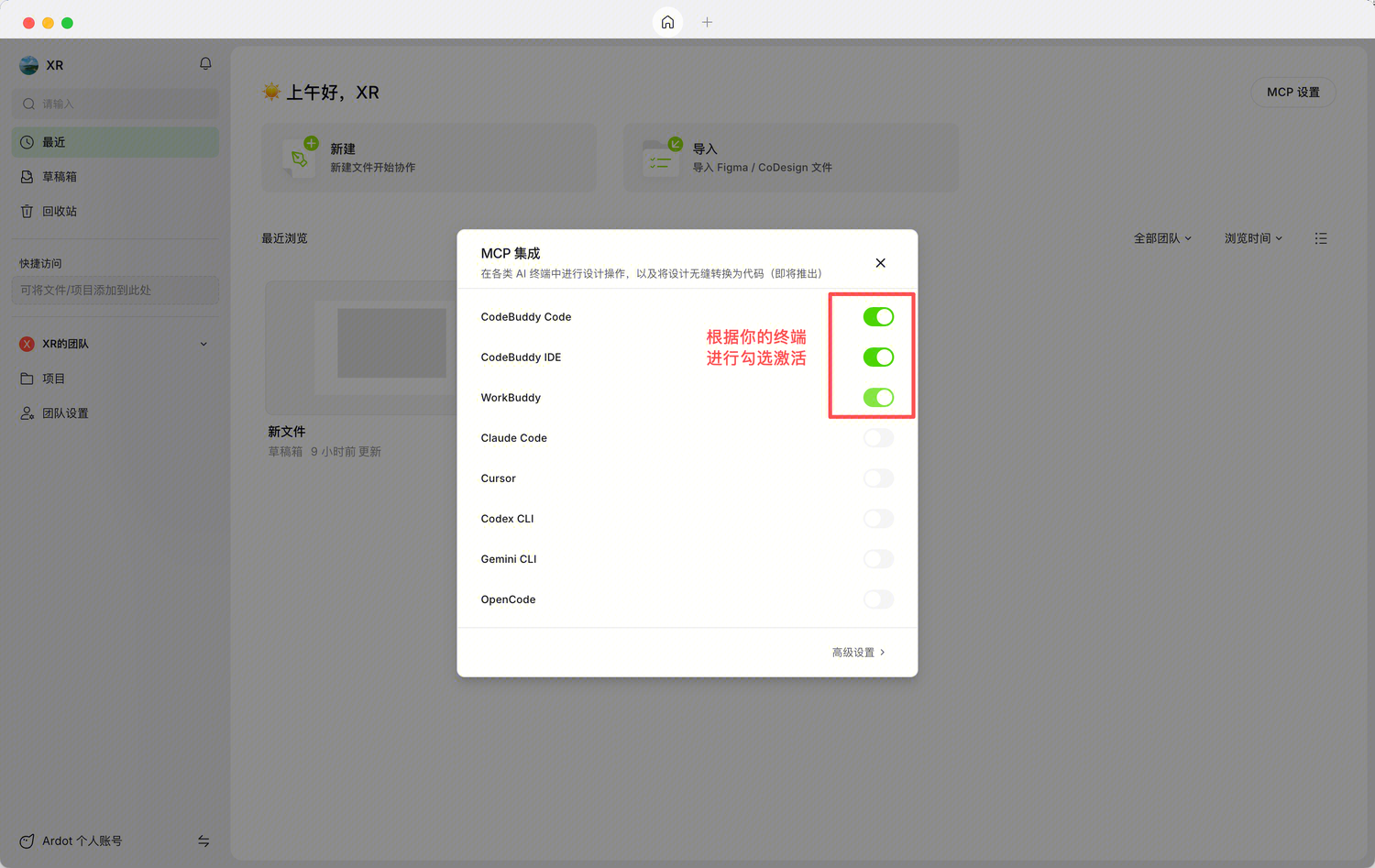
Enable the code editor you want to use in the configuration dialog.
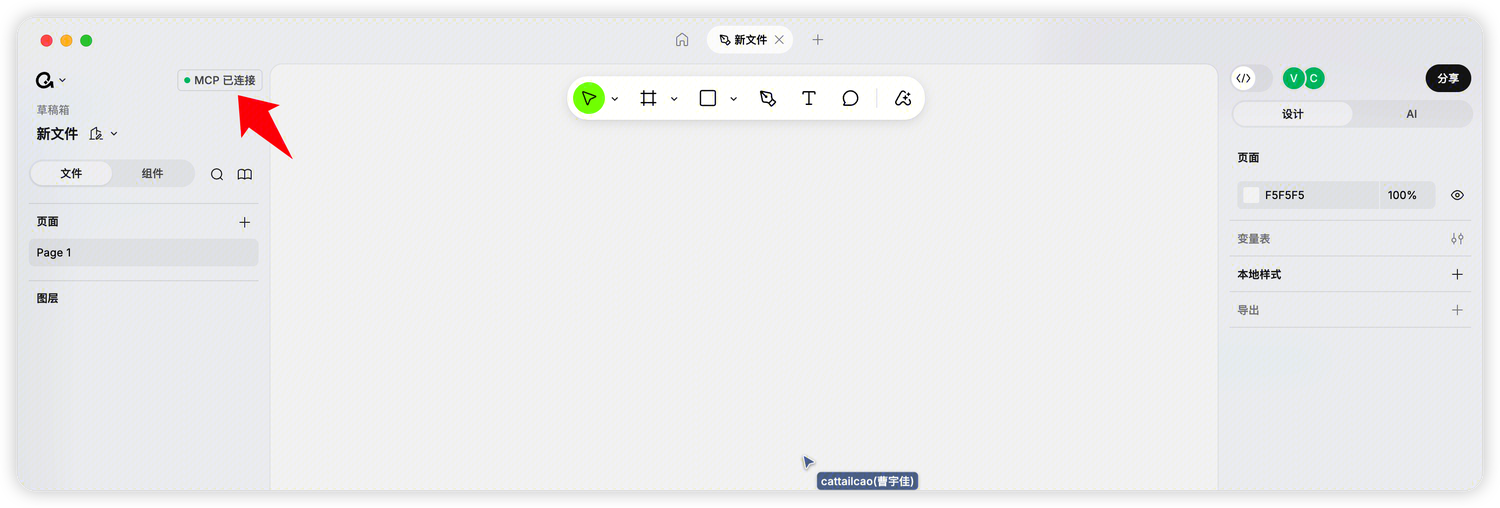
Open any Ardot design file and check whether the service connection is working properly.
Enter the design request you want in the terminal chat.
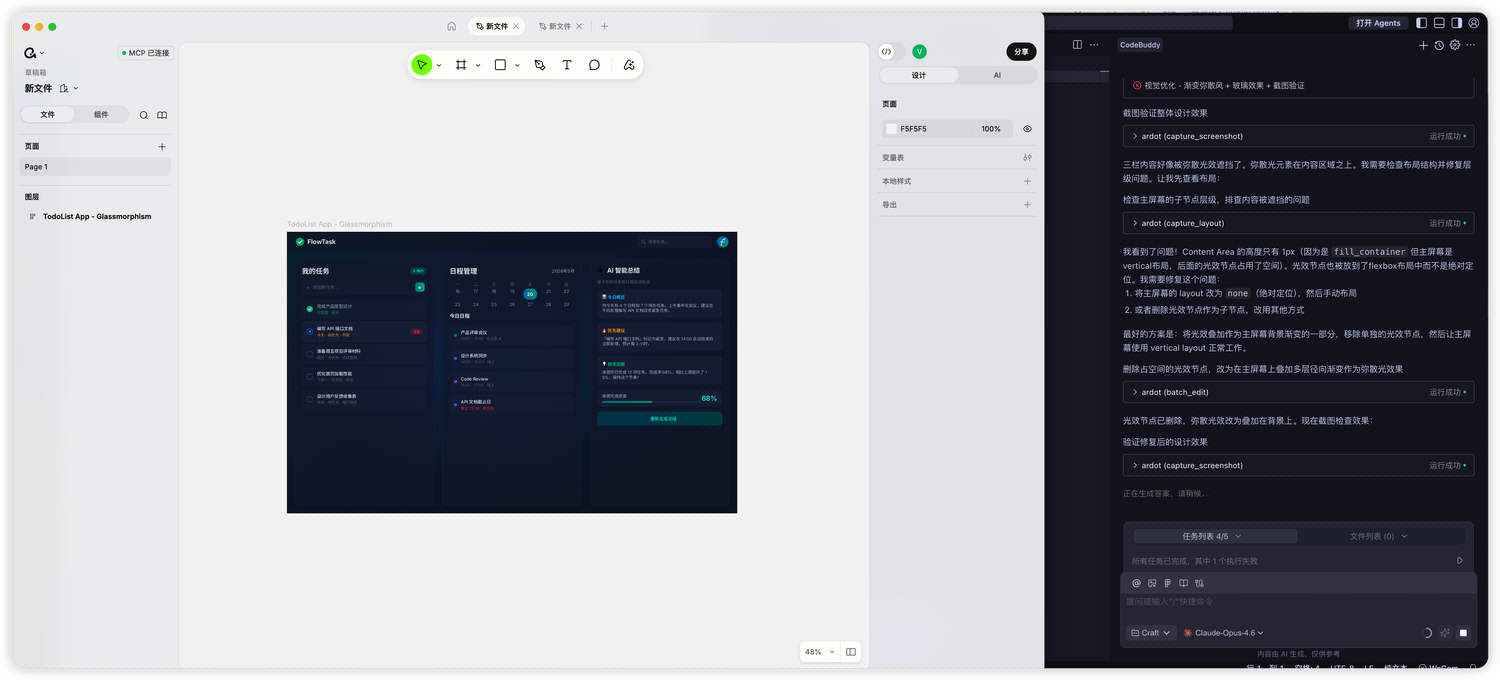
Example prompt:
Use Ardot to design a Todo List for me, with schedule management and AI summary features. Use a gradient diffusion style with a glassmorphism look.
MCP Tool Reference
Ardot MCP Server provides the following 18 tools (more APIs coming soon):
Query
| Tool | Description |
|---|---|
fetch_editor_state | Get current editor state, including active canvas, user selection, open files and other essential info — ideal for understanding context before starting a design task |
fetch_file_info | Get basic information about the currently active design file, including file name, file URL, file ID, and the user's permission — useful for confirming write access before performing edits |
batch_read | Batch retrieve nodes — supports name/type regex pattern search and node ID lookup, with configurable depth, data detail level, and the ability to request specific properties |
capture_screenshot | Capture a screenshot of a specific node or canvas area to verify AI-generated layouts, check visual output, and inspect component appearance; supports batch screenshotting (recommended < 10 per call) |
capture_layout | Get the layout structure tree of a design file, with depth control; can return only nodes with overlapping, clipping, or other layout issues |
Design System
| Tool | Description |
|---|---|
fetch_variables | Read variable definitions (Design Tokens) from the design file, including colors, spacing, font sizes, etc. — useful for generating global CSS style rules |
apply_variables | Create or update variable sets with multi-mode support (e.g., Light/Dark), supporting COLOR, FLOAT, BOOLEAN, and STRING variable types; uses merge mode by default |
fetch_component_lib | Retrieve components and component sets from a local component library — discover reusable components before creating instances via batch_edit |
fetch_guidelines | Retrieve design guidelines for 7 topics: table, landing-page, web-app, mobile-app, slides, code (code generation), and tailwind (Tailwind CSS v4) |
search_style_guide | Search style guide candidates across multiple design domains (style, color, typography, layout) to provide creative direction and visual inspiration for landing pages, marketing sites, dashboards, or app screens |
build_style_guide | Build a complete design system based on selections returned by search_style_guide, producing a Markdown design specification with colors, typography, spacing, effects, and more |
Edit Operations
| Tool | Description |
|---|---|
batch_edit | Execute batch design operations with 6 operation types: Insert, Copy, Update, Move, Delete, and Image (generate/fetch images); recommended maximum 25 operations per call |
locate_available_space | Find empty space on the canvas in a specified direction (top/right/bottom/left) and size, with configurable starting node and minimum padding, for placing new design content |
create_new_page | Create a new empty page (CANVAS) in the current .ardot file, with optional name, insertion position, and focus switching |
Resources & Export
| Tool | Description |
|---|---|
scan_exportable_resources | Scan a node tree and return exportable resource nodes categorized by type (image, svg) — use before export_nodes to determine scope and format |
export_nodes | Export nodes to image files in PNG, JPEG, WEBP, SVG, or PDF formats; PDF mode merges multiple frames into a single file |
upload_images | Batch upload local image files and apply them as image fills to specified nodes; supports PNG, JPEG, WEBP, with up to 20 items per call |
Utilities
| Tool | Description |
|---|---|
get_available_fonts | Get the list of available fonts and their styles in the current environment, used to verify font availability after creating text nodes and ensure correct fontName (family + style) combinations |
Use Cases
Design-to-Code
User: Generate React component code based on the login page in the current design
AI: [calls fetch_editor_state to get current state]
    [calls capture_screenshot to get page screenshot]
    [calls batch_read to get layer structure and properties]
    [calls fetch_guidelines to get code generation guidelines]
    → Generates complete React component code
AI-Assisted Design
User: Create a Dashboard page to the right of the current canvas
AI: [calls locate_available_space to find empty area]
    [calls fetch_guidelines to get web app design guidelines]
    [calls batch_edit to create page structure and components]
    [calls capture_screenshot to verify design output]
    → Completes the Dashboard page design
Design System Management
User: Create a set of light/dark theme design variables for the project
AI: [calls fetch_variables to check existing variables]
    [calls apply_variables to create color, spacing, font size tokens]
    → Completes design variable definitions
Design Review
User: Check if the current page has any layout issues
AI: [calls capture_layout with problemsOnly=true]
    → Returns all nodes with alignment/overflow issues
FAQ
MCP Server connection failed?
- Confirm that the Ardot editor is open and a design file is loaded
- Check that the MCP configuration in your AI tool is correct
- Restart your AI coding assistant to re-establish the connection
batch_edit operation errors?
- Ensure every Insert / Copy / Replace operation has a binding name
- Keep each call under 25 operations
- Do not use Update on descendants of nodes you just copied, as child node IDs are regenerated
Screenshot is empty or incomplete?
- Confirm that the
nodeIdpoints to a node visible on the canvas - Check that the node has actual content (empty frames won't produce meaningful screenshots)