

Local Font Service
The Local Font Service (Font Helper) allows you to use fonts installed on your computer in the Tencent Design Ardot editor. Once installed, the service runs in the background automatically, syncing your system fonts to the editor's font list.
TIP
If you're using the Tencent Design Ardot desktop app (macOS or Windows), the local font service is already built in — no additional installation required. The following guide is for users who access the Tencent Design Ardot Web editor through a browser.
Install the Local Font Service
macOS
1. Download the installer
Click to download: Ardot Font Helper macOS
2. Run the installer
Double-click the downloaded .pkg file and follow the installation wizard to complete the setup.
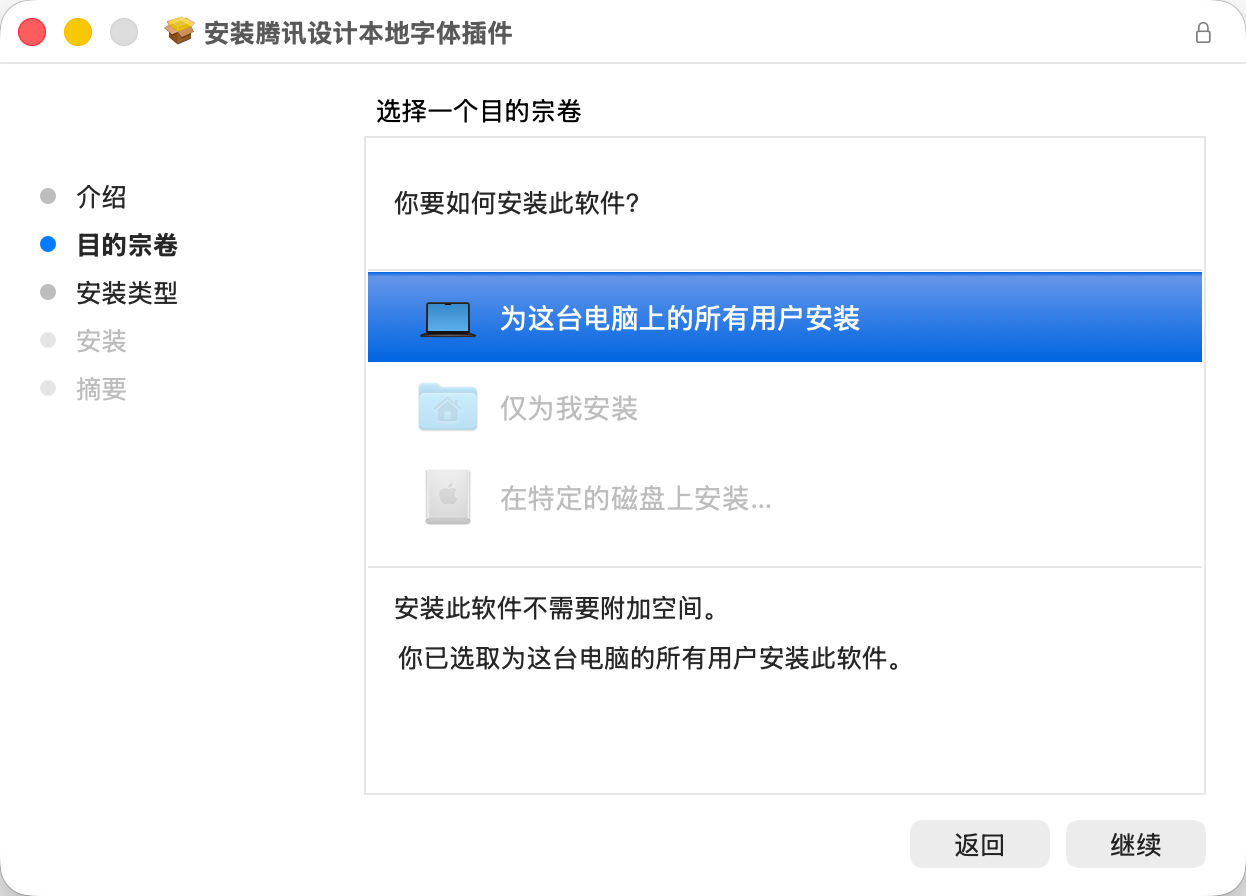
3. Installation complete
Once installed, the local font service will automatically start in the background and launch on startup. A notification will appear in the top-right corner of your screen when the service has started successfully. After seeing the notification, refresh or open the Tencent Design Ardot editor page to start using local fonts.

Note
macOS may show a security prompt. Go to System Settings → Privacy & Security to allow the app to run.
Windows
1. Download the installer
Click to download: Ardot Font Helper Windows
2. Run the installer
Double-click the downloaded .exe file and follow the installation wizard to complete the setup.
3. Installation complete
Once installed, the local font service will automatically start in the background and launch on startup. No manual action is needed.
Note
Windows may show a SmartScreen warning. Click More info → Run anyway to proceed.
Allow Browser Access to the Local Font Service
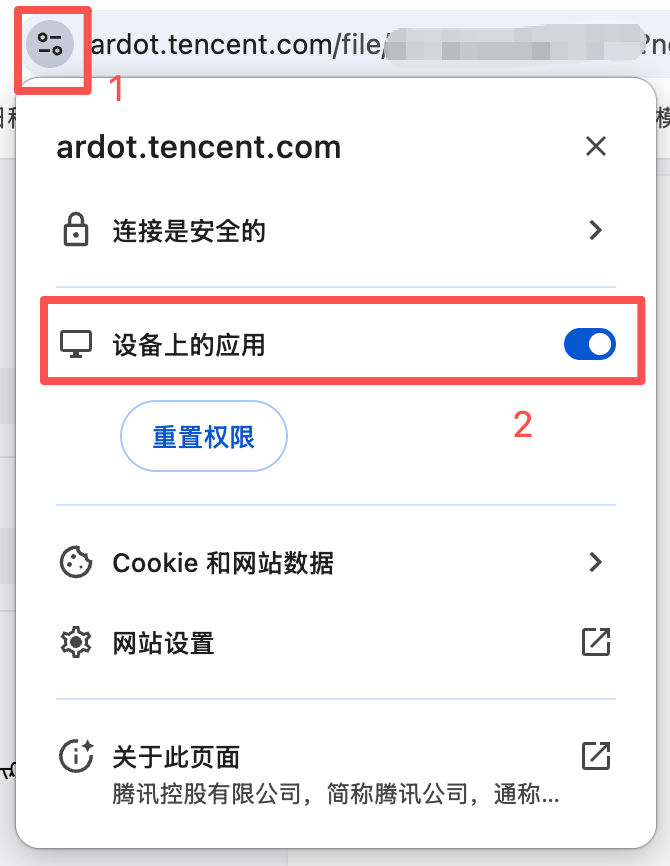
When you first visit the Tencent Design Ardot Web editor in Chrome, the browser may show a prompt near the address bar asking to access other apps and services on your device. Please click Allow to ensure the editor can read your local fonts.
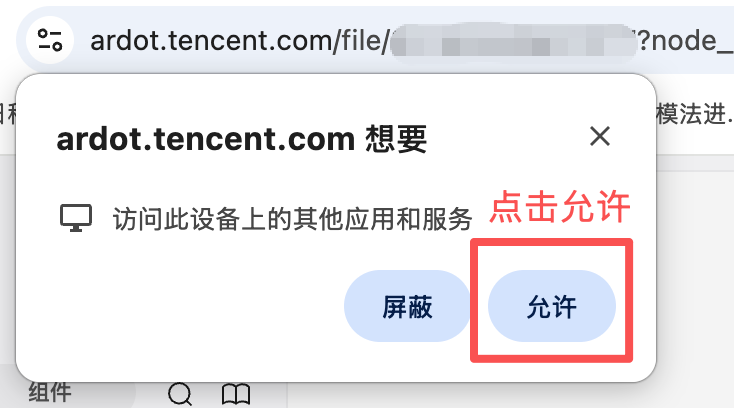
Verify the Service is Running
After installation and granting browser permission, open the Tencent Design Ardot editor (or refresh the page if already open). Click the text tool and check the font picker — if you can see your locally installed fonts, the service is working correctly.
Use Local Fonts in the Editor
- Select a text layer or create new text with the text tool
- In the Font dropdown on the right panel, you'll see your local fonts
- Choose your desired font and weight — the text style will update immediately
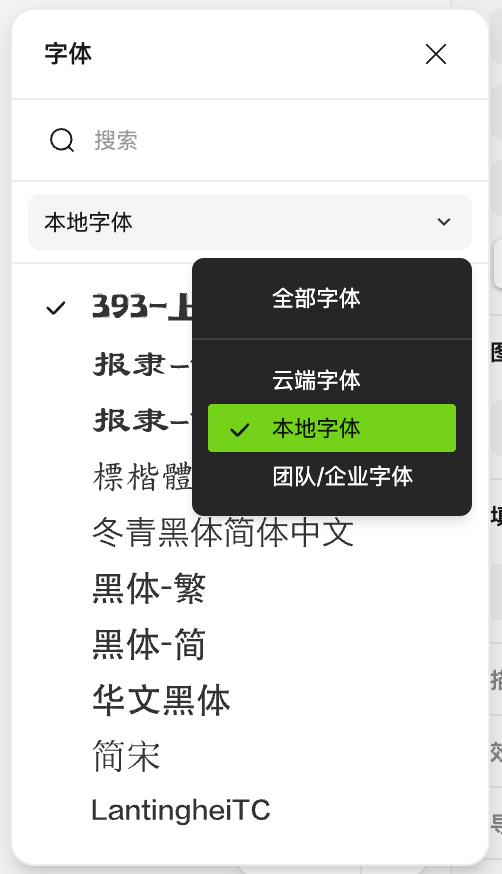
Tip: If you're collaborating with teammates, make sure they also have the same fonts installed, otherwise they may see missing fonts when opening the file.
Add New Fonts
To use a new font in the editor, simply install it on your computer:
macOS
- Download the font file (
.ttf,.otf, or.ttcformat) - Double-click the file and click Install Font in the Font Book window
Windows
- Download the font file (
.ttf,.otf, or.ttcformat) - Right-click the file and select Install or Install for all users
New fonts will typically appear in the editor within a few seconds. If not, try refreshing the editor page.
Uninstall the Local Font Service
If you no longer need to use local fonts in the browser, you can uninstall the local font service.
TIP
Uninstalling the local font service will not remove fonts installed on your computer. It only removes the background service. After uninstalling, the Web editor will no longer be able to access your local fonts.
macOS
Open the Terminal app and paste the following command:
/bin/bash -c "$(curl -fsSL https://static.d.gtimg.com/fonts/sh/uninstall.sh)"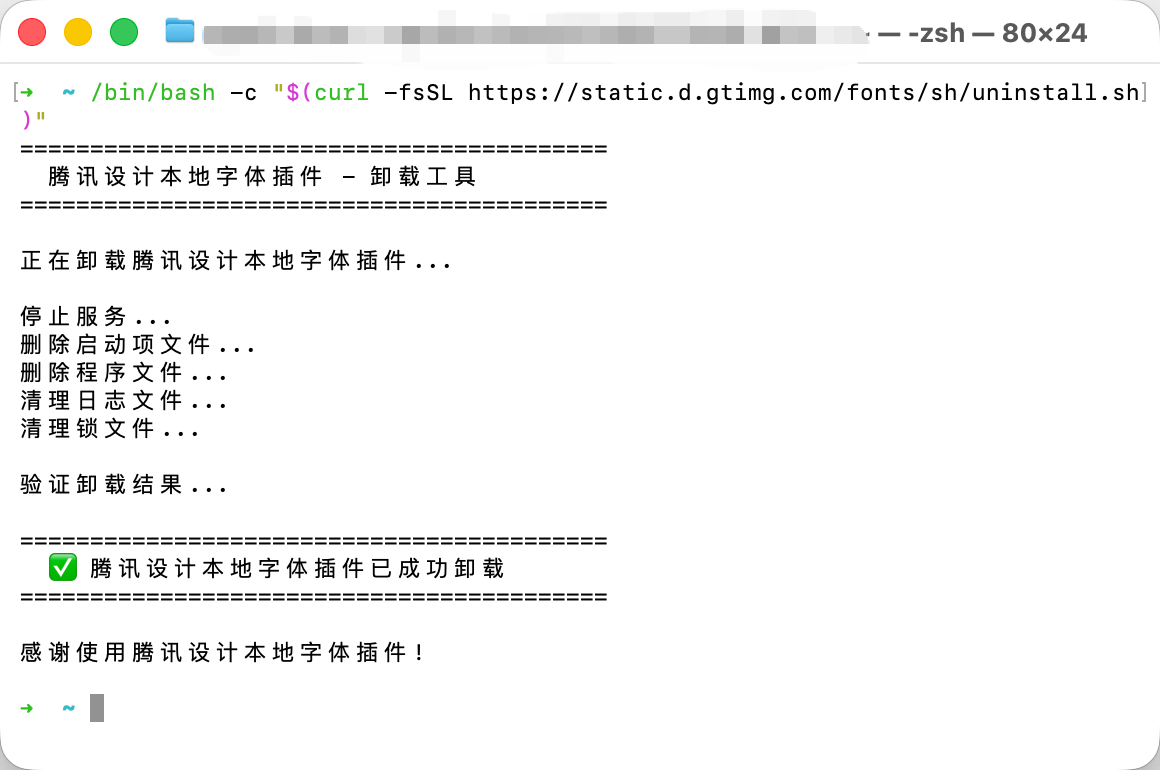
The script will automatically:
- Stop the local font service
- Remove the startup configuration
- Clean up related files
A confirmation message will be displayed when the uninstallation is complete.
Note
Uninstalling will stop all local font services, including the one built into the Tencent Design Ardot desktop app. If you also have the Ardot desktop app installed, you will need to restart the Ardot desktop app to restore its font service.
How to open Terminal
On macOS, press Cmd + Space to open Spotlight Search, type Terminal, and press Enter.
Windows
- Open Settings → Apps → Installed apps
- Find Tencent Design Local Fonts Helper in the list
- Click the ... menu and select Uninstall
- Follow the prompts to complete the uninstallation
On older versions of Windows 10, you can also uninstall through Control Panel → Programs and Features.
FAQ
I'm using the desktop app. Do I still need to install the local font service?
No. The Tencent Design Ardot macOS desktop app and the upcoming Windows desktop app already include the local font service built in. You can use your local fonts right away.
The installation is only needed for users who access the Web editor through a browser.
Which operating systems are supported?
- macOS 10.15 (Catalina) and above
- Windows 10 and above
Both Intel and Apple Silicon (M-series) Macs are supported.
Which font formats are supported?
The local font service supports these common font formats:
.ttf(TrueType Font).otf(OpenType Font).ttc(TrueType Collection)
If your font file is in another format (e.g., .woff), consider converting it to one of the above formats before installing.
Which browsers are supported?
The local font service for the Web editor currently supports Chrome. Safari is not supported at this time. Support for Safari will be added in a future update — stay tuned.
I installed a font but can't see it in the editor
Try the following steps:
- Verify the font is installed — Check in macOS Font Book or Windows Settings → Personalization → Fonts
- Refresh the editor — Close and reopen, or press
Cmd/Ctrl + Shift + Rto force refresh - Check the service — See "How do I check if the service is running?" below
- Check the format — Ensure the font file is
.ttf,.otf, or.ttc - Check browser permissions — If using Chrome, make sure you have allowed the site to access other apps and services on your device. You can check and modify this permission by clicking the icon to the left of the address bar
How quickly do newly installed fonts appear?
The service automatically detects new fonts. They typically appear in the editor within a few seconds. If not, try refreshing the editor page.
Fonts look different for my teammates
When you use local fonts in a design file, collaborators who don't have the same fonts installed may see fallback fonts instead.
Solution: Make sure all collaborators install the same font files. Consider managing and distributing fonts within your team.
My firewall or antivirus is blocking the service
The local font service runs entirely on your computer and does not access external networks or upload any data. If your firewall or antivirus shows a warning, add it to the trusted list or allow it to run.
How do I check if the service is running?
The simplest way is to open the editor and check whether local fonts appear in the font picker. If you can see your local fonts, the service is working.
If only online fonts are shown:
- Restart the service
- macOS: Open Terminal and run
launchctl kickstart -k gui/$(id -u)/com.tencent.design.font-helper - Windows: End the process in Task Manager, then re-run the program from the installation directory
- macOS: Open Terminal and run
- Reinstall — Download and install the service again
Does the service use a lot of system resources?
No. The service uses very few resources while running in the background. It only scans fonts at startup and when new fonts are detected, staying idle the rest of the time.