

Pen Tool
The Pen tool is used to create custom vector paths by placing anchor points. Ardot's Pen tool supports multiple paths that branch in different directions, without the need to create and merge separate paths. It is mainly used for:
- Drawing custom vector shapes
- Creating straight and curved paths
- Building complex vector networks
How to Use the Pen Tool
Create a Vector Path
- Select the Pen tool from the toolbar, or press
P. - Click on the canvas to add the first anchor point.
- Continue moving and clicking to add more anchor points and paths. To create a curve, click and drag the cursor to adjust the length and curvature.
- Complete the path:
- Close the path: Move the Pen tool over another anchor point in the vector network. A small circle will appear next to the cursor—click to close the path.
- Keep it open: Press
Escto deselect.
Once created, you can use vector edit mode to continue modifying the vector network.
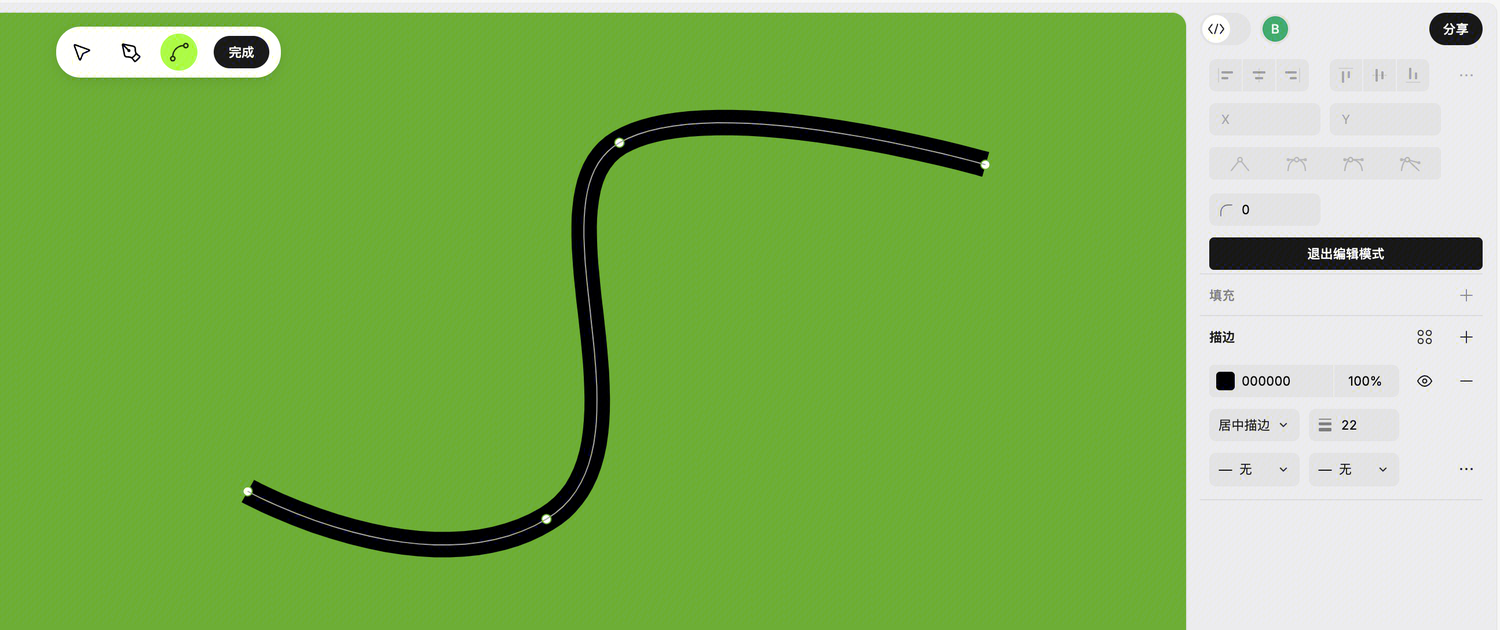
Add End Cap Styles to Endpoints
You can add styles to the endpoints of any open path.
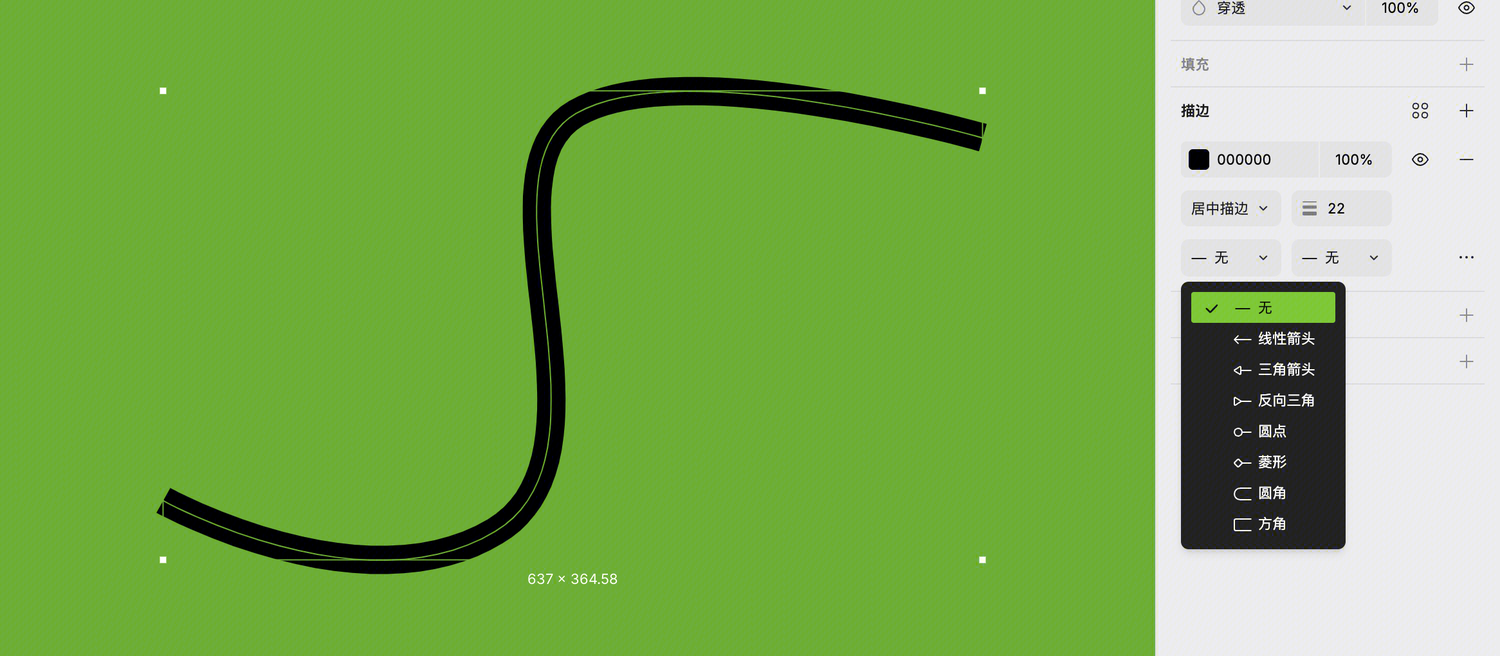
Paths with two endpoints: The end cap property is displayed in the right sidebar, and each endpoint can be set independently.
Paths with more than two endpoints: The end cap property is shown in the advanced stroke menu. When the entire path is selected, individual endpoints cannot be edited independently. Enter vector edit mode and select a single anchor point to adjust.
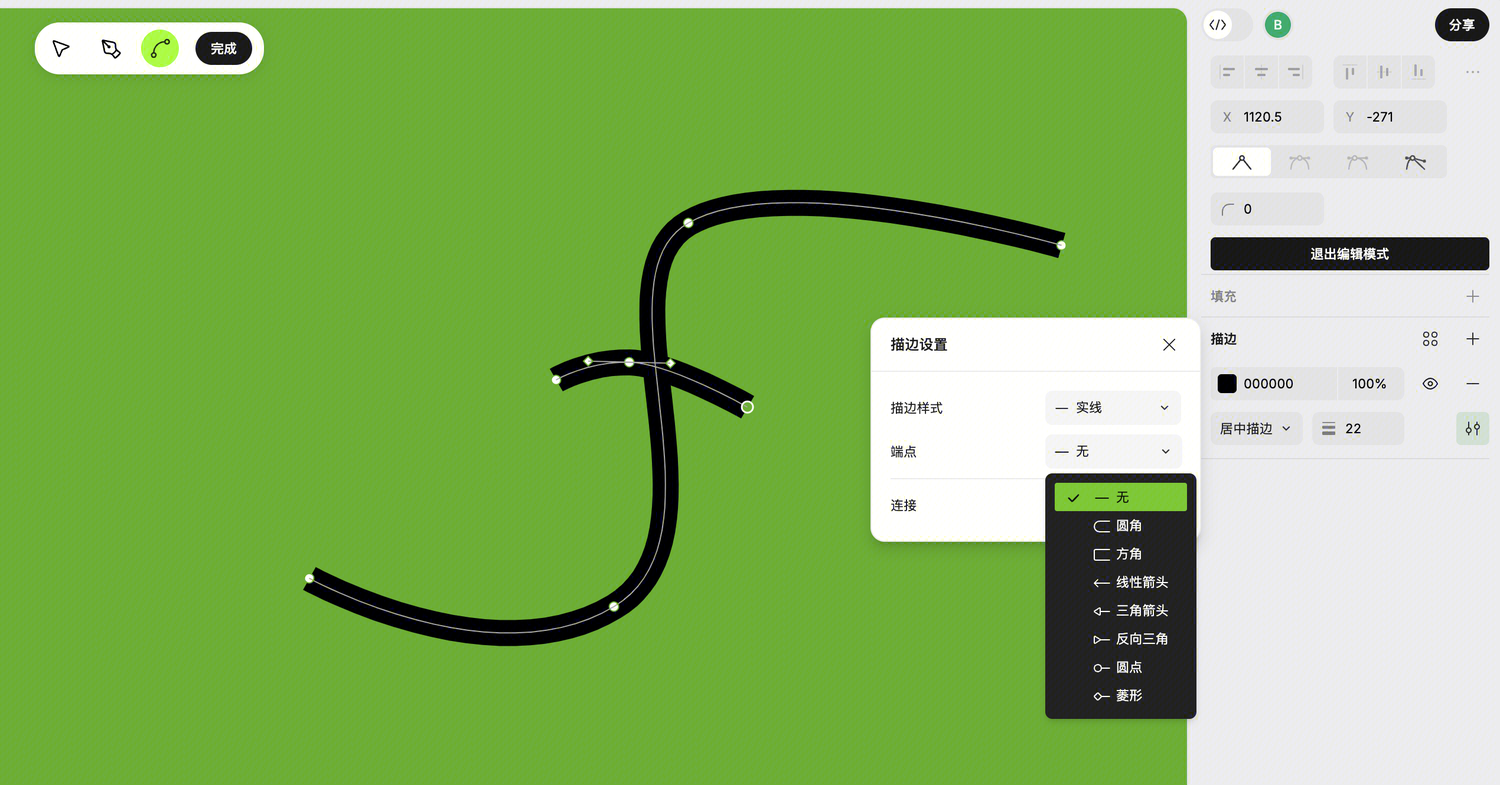
There are eight end cap styles:
- None
- Line arrow
- Triangle arrow
- Reverse triangle
- Circle
- Diamond
- Round
- Square