
Convert Strokes and Text to Vector Paths
Convert Strokes to Vector Paths
"Outline Stroke" converts a stroke into an editable vector path. It is mainly used for:
- Removing or extending partial dashed lines
- Creating custom shapes and editing them in vector edit mode
- Merging multiple paths into a single object
- Scaling vector objects uniformly
Outline Stroke is a destructive operation—once a stroke is outlined, its stroke properties can no longer be changed. If you make a mistake, you can restore through version history or use undo.
How to Use Outline Stroke
Right-click the layer and select Outline Stroke, or use the keyboard shortcut:
- Mac:
⌘ ⌥ O - Windows:
Ctrl Alt O
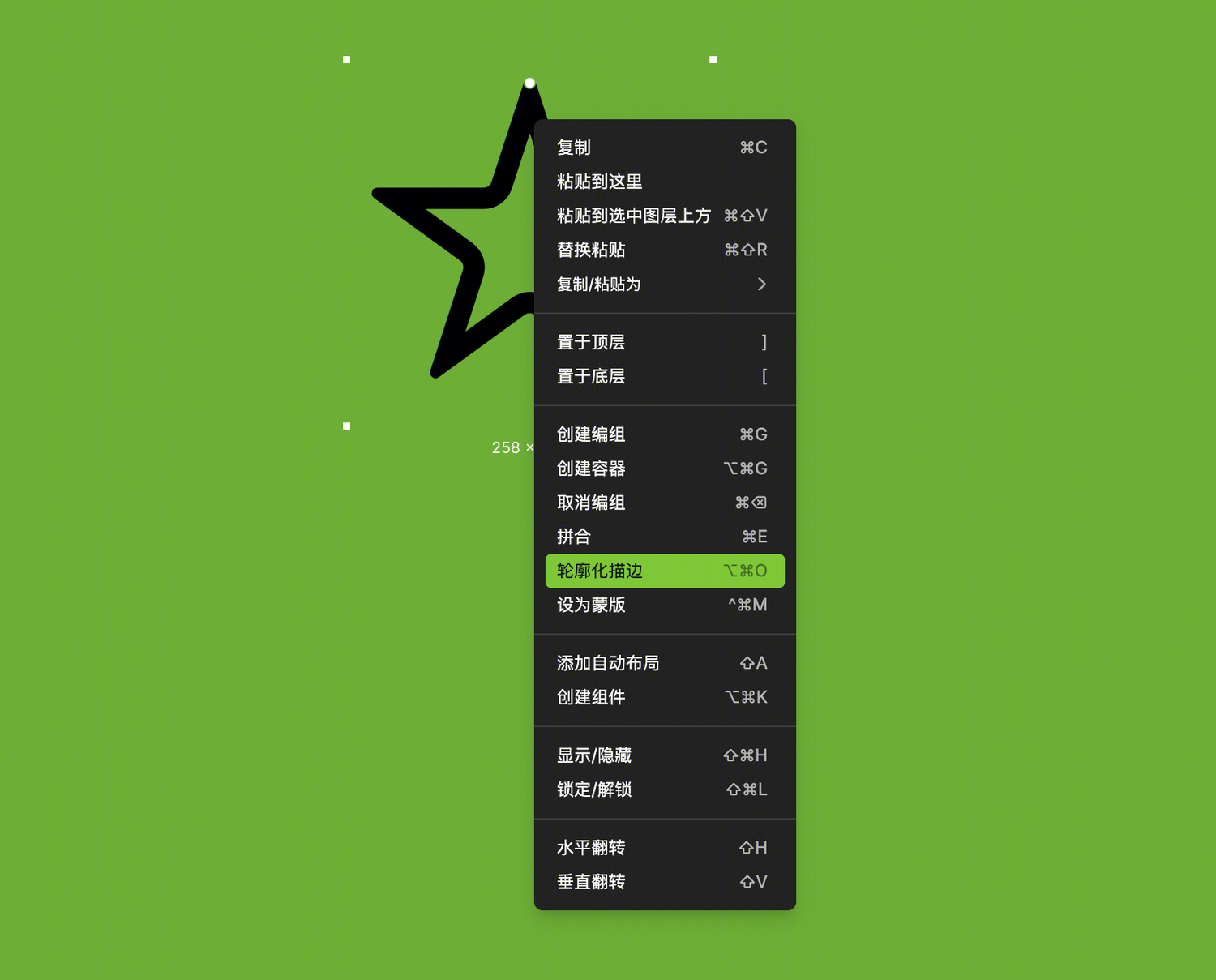
After conversion, you can use vector edit mode to edit the vector path.
Convert Text to Vector Paths
After converting text to a vector path, the text is no longer editable text but becomes a vector path whose shape can be freely modified. It is mainly used for:
- Customizing certain details of a font
- Creating logos or wordmarks
- Preparing assets for print
- Reducing file or export size
- Merging multiple paths into a single object
Converting text to a vector path is a destructive operation—after conversion, the text content and typographic properties can no longer be edited. If you make a mistake, you can restore through version history or use undo.
Two Conversion Methods
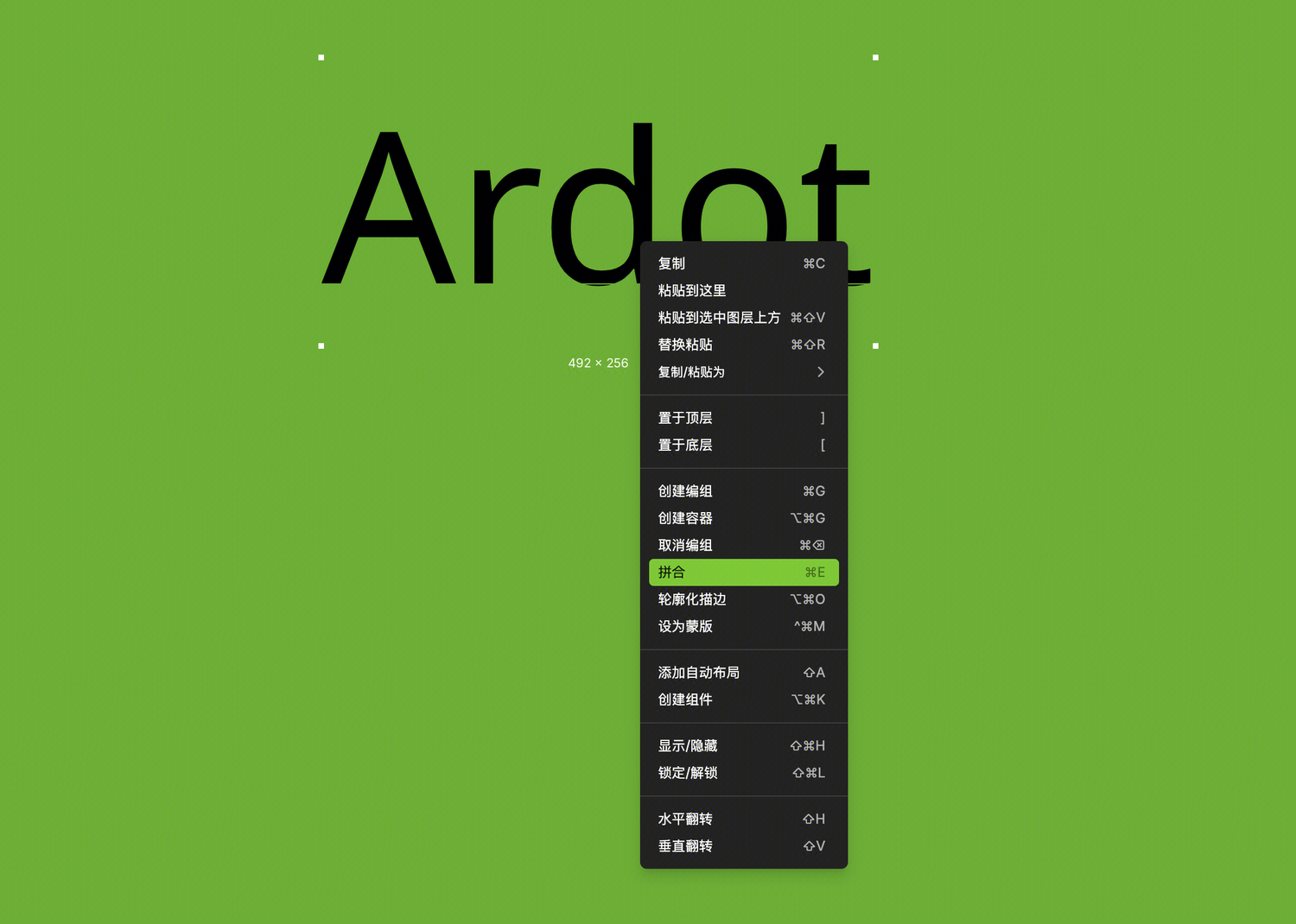
There are two ways to convert a text layer to a vector path:
- Flatten: Merges all selected layers into a single vector layer.
- Outline Stroke: Converts each glyph into an independent vector layer without merging.