

Import CoDesign Files
Ardot supports importing design files through a CoDesign design share link, with no need to download the source file. Once the import completes, a read-only file is created in the target project (or in your drafts) and can be opened for viewing and inspection.
Known Limitations
| Limitation | Description |
|---|---|
| Design files only | CoDesign prototypes, whiteboards, and other share types cannot be imported |
| Read-only file | Files imported from CoDesign into Ardot are read-only: viewing and inspection only, no editing (CoDesign data does not include everything Ardot editing requires) |
Steps
- In the workspace, click the Import entry (Import Figma / CoDesign files)
- Switch to the CoDesign File tab
- Paste the CoDesign design share link into the input (you can paste the full share message as-is)
- If the share is password protected, enter the 4-character access password in the field on the right
- Choose a target project (leave it unselected to import into drafts)
- Click Import, track the progress in the task row, and click View to open the file when it finishes
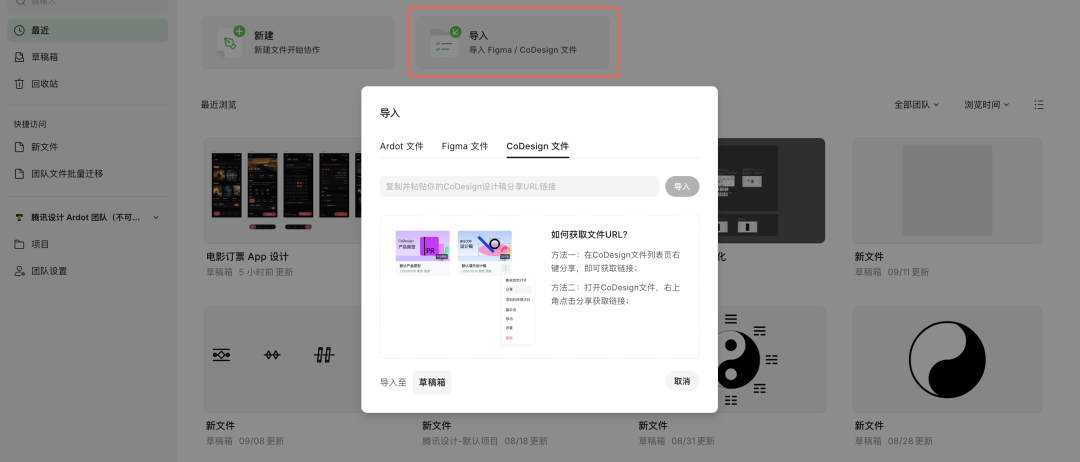
How to Get the Share Link
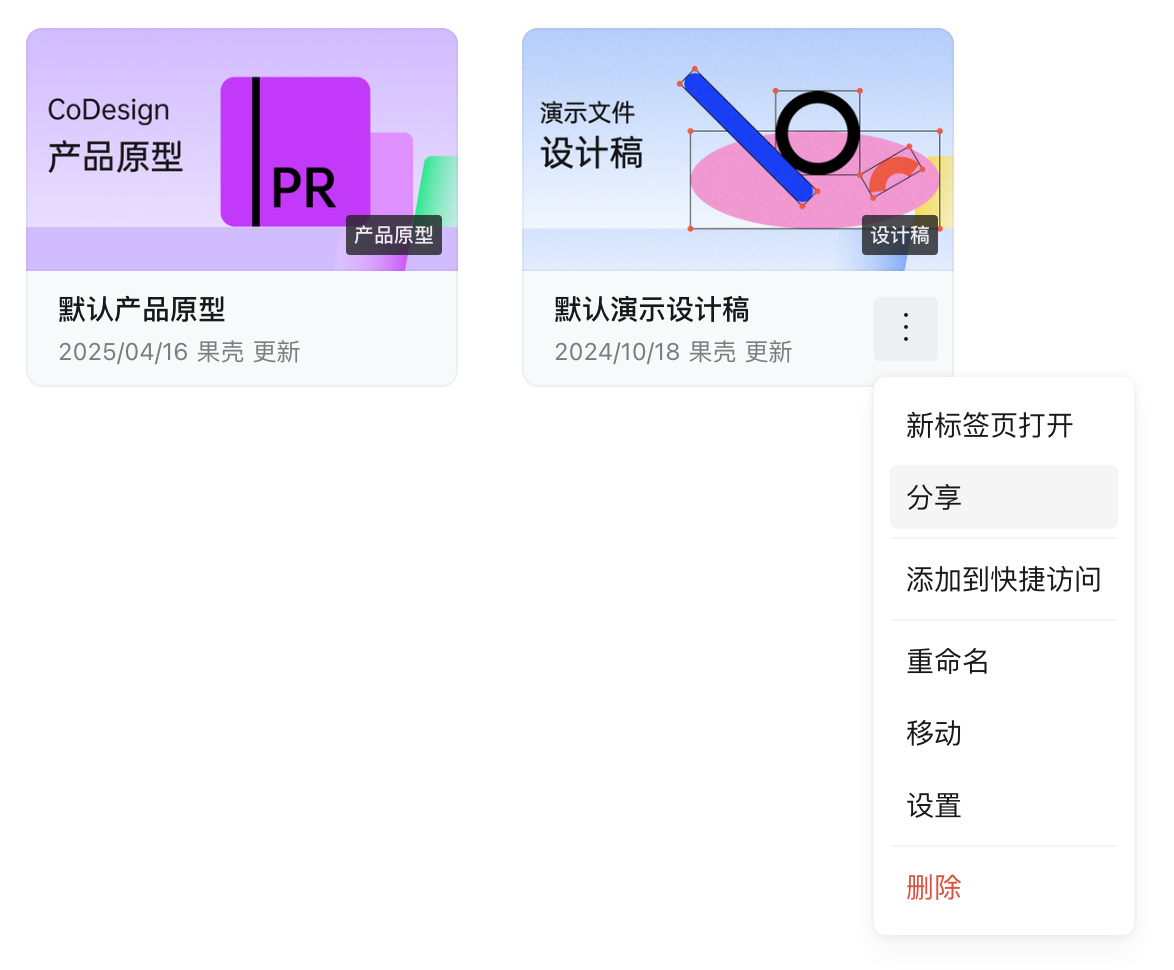
- Method 1: On the CoDesign file list page, right-click the file, choose share, and copy the link
- Method 2: Open the CoDesign file and click Share in the upper-right corner to copy the link
Link Validation Rules
The input is validated as you type or paste. The Import button becomes clickable only after validation passes.
Supported Link Formats
| Form | Example | Notes |
|---|---|---|
| Plain link | https://codesign.qq.com/s/123456789012345 | Paste the share link directly |
Link with the app path | https://codesign.qq.com/app/s/123456789012345 | Equivalent to the form above |
| Full share message | [Sample design] ... https://codesign.qq.com/s/123456789012345 Password: AB12 | The link is extracted and the password is filled in automatically |
The link must end with the share ID (digits only). When you paste a full share message, an access password in the form of four uppercase letters or digits is detected and filled into the password field, while the input keeps only the plain link.
Common Validation Messages
| Message | Cause | How to Fix |
|---|---|---|
| Please enter a valid CoDesign design share link | No valid codesign.qq.com share link was found in the input | Copy the share link again and make sure it is complete and ends with the share ID |
| Internal links cannot be imported. Please modify the public sharing settings, enable the "Externally Accessible" option, and copy the link again | The link uses the internal codesign.woa.com domain | Enable "Externally Accessible" in the CoDesign share settings, then copy the external link |
| Share "{title}" is encrypted, please enter the password set when sharing | The share is password protected, and the password is missing or incorrect | Enter the 4-character access password set when sharing |
| Please check sharing settings and ensure the sharing scope is set to "Accessible to current file team members" | The share link is not accessible | Change the sharing scope to "Accessible to current file team members" in CoDesign |
| Only CoDesign share links of type "Design" are supported | The share is a prototype, asset export, or another type | Share a "Design" type file instead and copy the new link |
Import Task Status
| Status | Description |
|---|---|
| Parsing | Parsing the CoDesign design data |
| Uploading | Uploading canvas data and the cover image |
| Importing | The server is processing the import task |
| View | Import succeeded; click the task row to open the file |
| Import failed | The import failed; use the feedback entry next to the error |
| Aborted | The task was terminated with the Abort button |
You can click Abort to cancel a running task. When an import fails, the feedback entry next to the error message submits the file name and error details together.